

 English
  Tiếng Việt
 Wifi broadcasting kits are certainly no longer too strange to any of us. However, do you know how to broadcast wifi from your computer, laptop? If not, please read our article "using a computer to broadcast wifi" below!how to broadcast wifi from computer, laptopusing a computer to broadcast wifi>>> Some cheap 3g wifi modem kits you can refer to.Instructions on broadcasting wifi from a laptop using software
On current laptop models, the ability to broadcast wifi is usually integrated, but to do that, we need to install the Wi-Host software for the machine. Accordingly, Wi-host will turn your laptop, which is connected to the internet via cable, into a wifi hotspot.Step 1: You need to download the "Wi-Host" software. This is currently the best laptop wifi broadcasting software.

Step 2
: After downloading, open the software under administrator privileges. Right-click on the software and select "Run as administrator".
Step 3: Next, you need to check if your computer supports the wifi broadcasting feature. Run the software and select "Hosted Network Supported".Wi-Host. This is the best software for sharing wifi from laptop today.
Step 2: Sau khi tải xong, bản hãy mở phần mềm dưới quyền của admin. Kích chuột phải vào phần mềm rồi chọn "Run as administrator" button.

Step 3: Tiếp theo phải kiểm tra xem máy tính của bạn có hỗ trợ tính năng phát wifi hay không. Chạy phần mềm và chọn "Hosted Netword Supported" button.
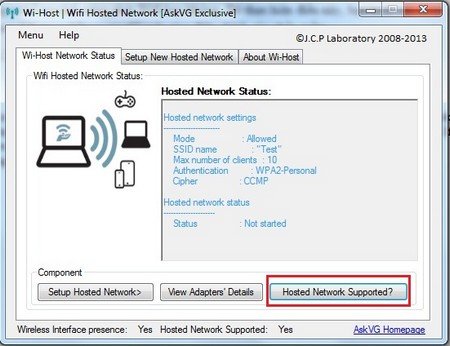
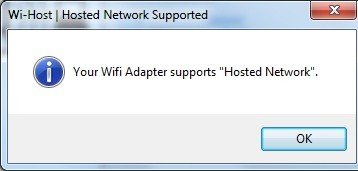
If your computer supports it, a notification will appear as follows, then your computer supports broadcasting wifi. Then you proceed as follows.
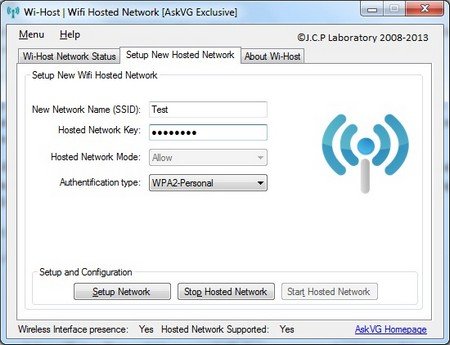
Step 4: Set up the wifi network on the software. Select the Setup "Hosted Network" section" on the software interface. There you will fill in the wifi name (This can avoid the prying eyes and unauthorized use of wifi from neighbors, but for ), password and security protocol If you are looking for a cheap 3G wifi modem with WPA/WPA2 security mode, you can refer to the following products:. After filling in all the information, press the "Setup Network" button.
Step 5: After completion, a notification will appear, click "OK", then a second window will appear asking if you want to broadcast wifi from this device, select "Yes". By default, the operating system will not allow internet sharing, you must change its settings. In the third notification window, select "Open Network Connections".
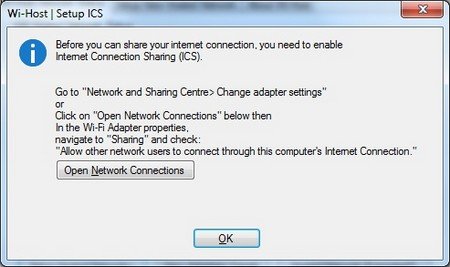
Step 6: The "Network connections" dialog box appears, right-click on the network icon created by Wi-Host and select "Properties". The notification window appears, select "Sharing" and then check both boxes in the notification window.
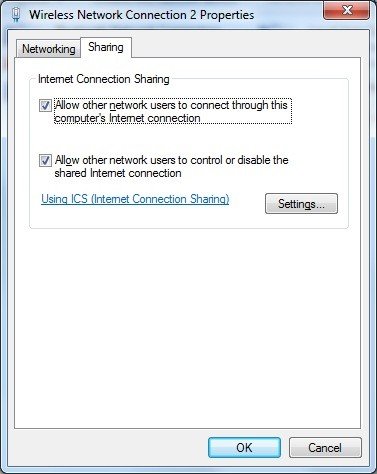
Step 6 only needs to be done once, the next time you use the software, you won't have to do it again. So after the above steps, you have turned your laptop into a wifi hotspot. You can use your laptop, phone, tablet to connect to the newly created wifi network.
Broadcast wifi from a computer using win 10 without software
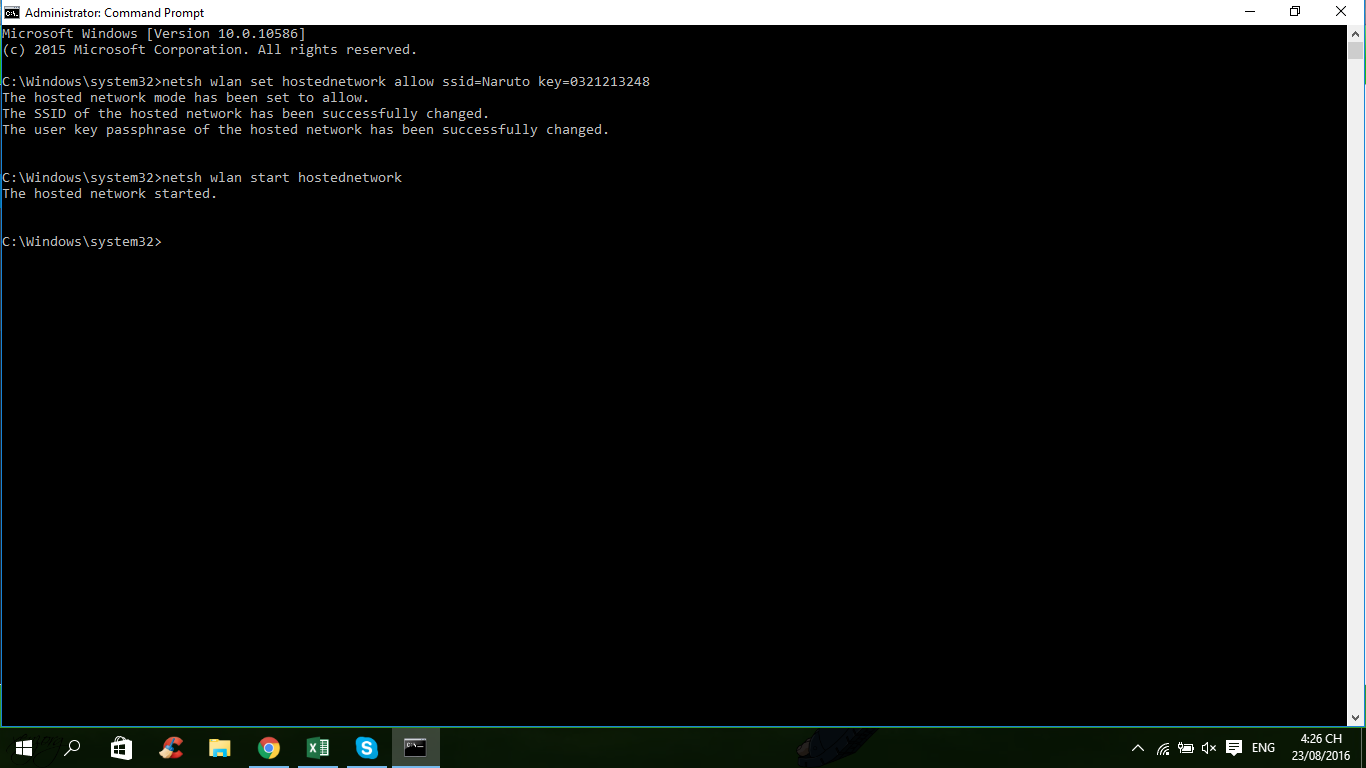
It is Microsoft's latest operating system. Win 10 brings outstanding features compared to previous operating systems. To broadcast wifi on win 10, from the Desktop screen, select the "Start" button. Next, go to "Run", type cmd. A black screen will appear, type the following command:netsh wlan set hostednetwork allow ssid=Naruto key=0321213248Accordingly, "ssid" is the name of the wifi, "key" is the password.If you are using Win 10, you still have to enable the network sharing feature "Sharing". The steps are similar to win 7.Hopefully, the above guide will help you successfully broadcast wifi from your computer. We are currently distributing many high-quality, inexpensive "4g wifi hotspot" devices, hoping for your support.
netsh wlan set hostednetwork allow ssid=Naruto key=0321213248
Theo đó thì "ssid" chính là tên của wifi, "key" là mật khẩu.
Nếu dùng Win 10 bạn vẫn phải bật tính năng chia sẻ mạng "Sharing". Các bước làm cũng tương tự với win 7.
Mong rằng bài hướng dẫn trên sẽ giúp successfully sharing wifi from your computer. Chúng tôi hiện đang phân phối rất nhiều 4g wifi router quality, cheap price, we hope you will support us.