

 English
  Tiếng Việt
 - 1. Guide to configuring and setting up TP-Link M7350 for simple Wi-Fi broadcasting
- 1.1. Step 1: Identify the TP-link M7350 Wi-Fi account and password
- 1.2. Step 2: Log in to the m7350 Wi-Fi modem
- 1.3. You can set up settings such as usage capacity limits, monthly traffic statistics in the "
- 1.4. TP-Link M7350 wifi router
To configure and set up the tp-link M7350 requires many steps that not everyone can use. Today 3G Wifi would like to guide you how to set up and configure for TP-Link M7350 in the simplest way that anyone can use.
Guide to configuring and setting up TP-Link M7350 for simple Wi-Fi broadcasting
Step 1: Identify the TP-link M7350 Wi-Fi account and password
The Wi-Fi password is usually on the casing of the TP-link M7350. Please check the device label and you will see it immediately.
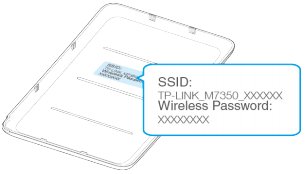 Change M7350 Wi-Fi password
After obtaining the password, please connect to Wi-Fi to continue the setup.
>>>You might be interested in: 4G Wi-Fi router
Step 2: Log in to the m7350 Wi-Fi modem
Open your browser and go to the address 192.168.0.1 orhttp://tplinkmifi.net when you access the modem, it will ask you to log in. Enter your ID and password. Usually admin and admin.
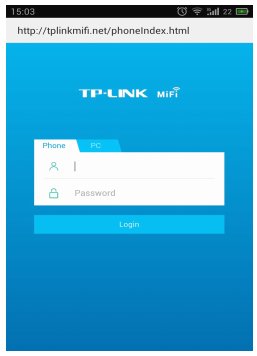
Log in to tp-link M7350
To change the password, go toAdvancedselectWireless > Securityand change your password.Step 3: Set up other settings
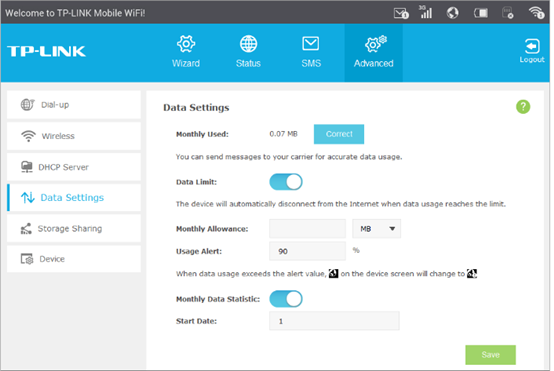
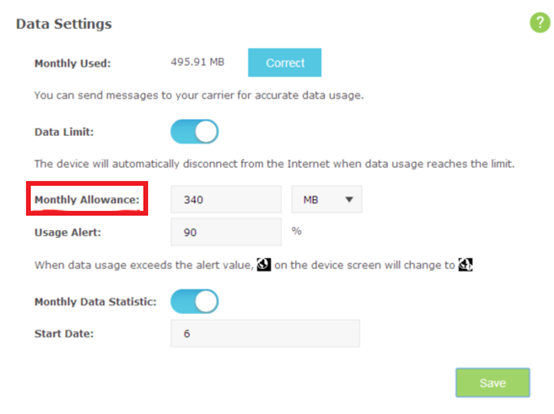
You can set up settings such as usage capacity limits, monthly traffic statistics in the "
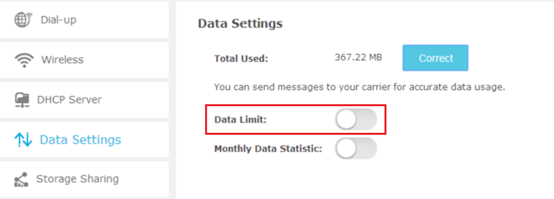
Data Settings" section. In addition, there is also a Storage Sharing, DHCP Server... section for you to set up advanced items. If you are a normal user, you should not set these items. Because you might accidentally disable the wifi function..
Step 4: Enable statistics of data currently used in the month
TP-Link M7350 wifi router
https://youtu.be/jIGYRIVM46s
Thus, the wifi setup process is complete. You can refer to the available functions inTP-Link M7350 . Wish you set up and install this wifi router successfully!Chúc bạn thiết lập và cài đặt thành công bộ phát wifi này !