

 English
  Tiếng Việt
 Often you connect to wifi but don't always remember the password. So how to get the wifi password and share it with other devices. 3G Wifi will guide you how to view wifi password on laptop computer in the fastest way. This method can be applied to all computers using Windows versions.

>>> Do you want to change your home wifi router, please see: 4G Wifi Modem
To get the wifi password this way, you need a desktop computer (laptop) that has previously connected to wifi. Then follow these steps:
Step 1: Move the mouse pointer to the wifi network icon and right-click to select Figure 2: Select set up a new connection network.
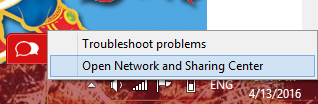
Step 2: Select the wifi you want to view the password for. Here I will get the password that is connected with the name Wifi_khong_mat_khau.
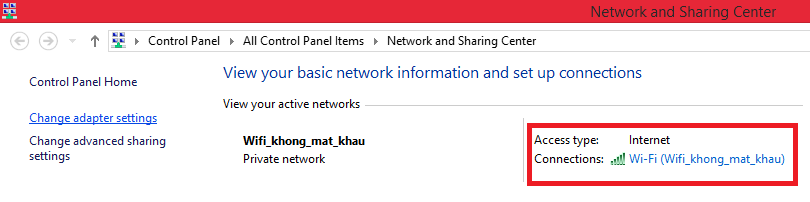
Double-click the wifi icon in the red box above to view the information of the wifi the computer is connected to.
Step 3: View connected wifi password on computer
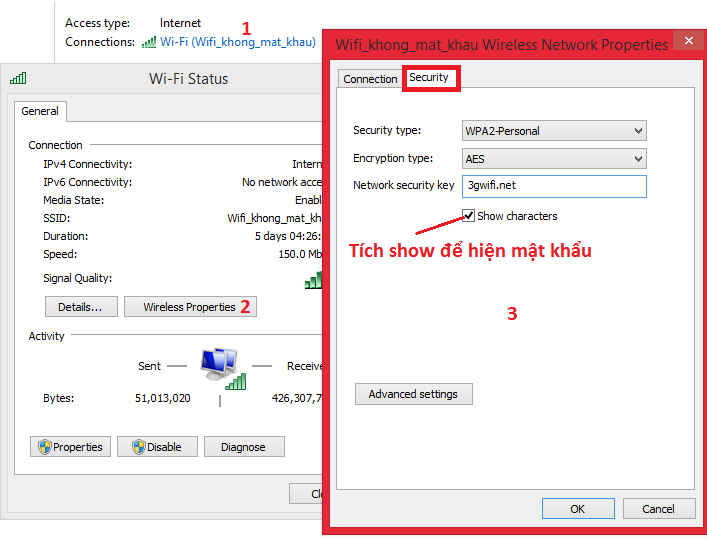
In this step, select Security and tick Show to show the password. As above, the password will be displayed as 3gwifi.net . This is the simplest way to view the Wi-Fi password on a computer or laptop. After knowing the password, you can use it to log in to your phone, tablet, and other devices.
Here we have guided you on how to view the Wi-Fi password on a computer. This method requires you to have connected to the Wi-Fi with your computer beforehand. Another way to view the Wi-Fi password on your computer is to access the modem's IP address. This method requires you to know the network provider's modem login details. Usually found on the back of the modem (if not changed).
Above, we have guided you on how to view the Wi-Fi password on a laptop. Apply it now to find out the Wi-Fi password.
Copyright belongs to 3gwifi.net
Article was edited and updated on 01/14/2020