

 English
  Tiếng Việt
 While using a Smartphone, you must have at least once wondered why your phone, even though it's switched to 3G network mode, only displays 'E' and not 'H+' or '3G'. What are the reasons andhow to fix weak 3G.
Causes & solutions for not showing 3G
Your device is set to 2G mode
All Android phones allow you to choose network modes such as: 2G only, 3G only, and automatic switching between 2G, 3G, and 4G networks. In this case, it's highly likely that you have selected the '2G Only' mode, so your phone can only use the 2G network, hence it only displays 'E' and cannot use high-speed networks.
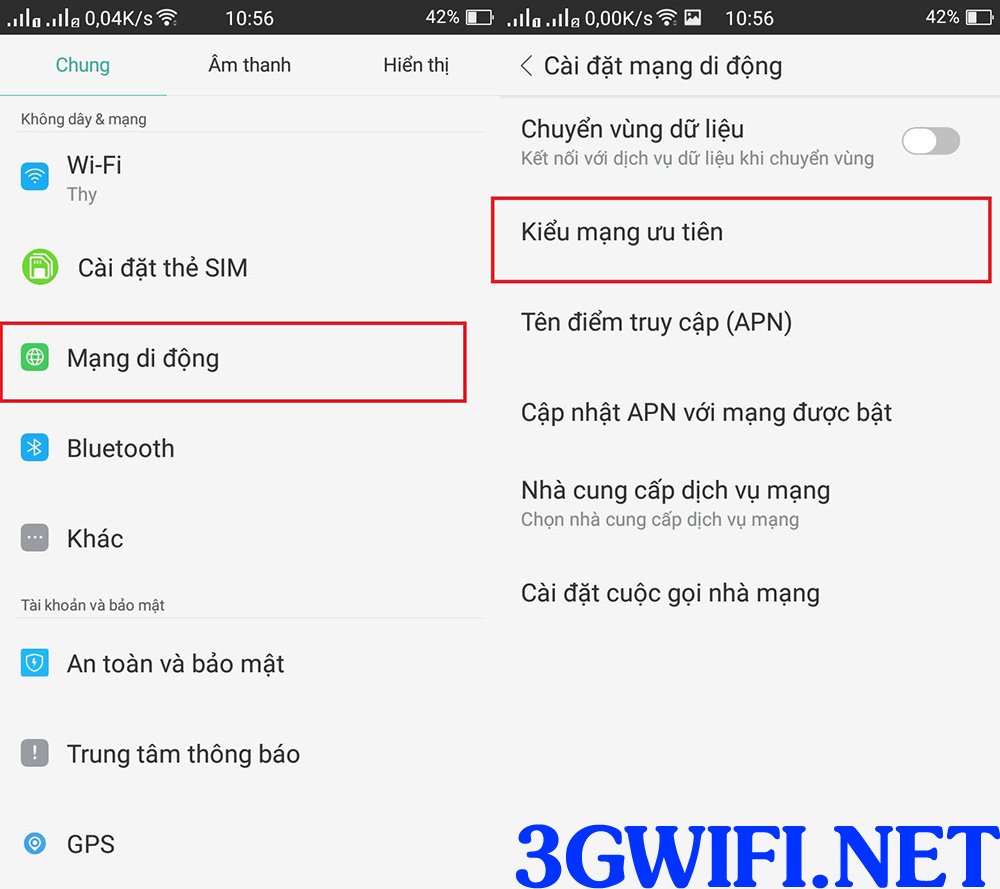
>>> Refer to high-speed 4G WiFi hotspots for phones at: 4G mobile WiFi hotspot
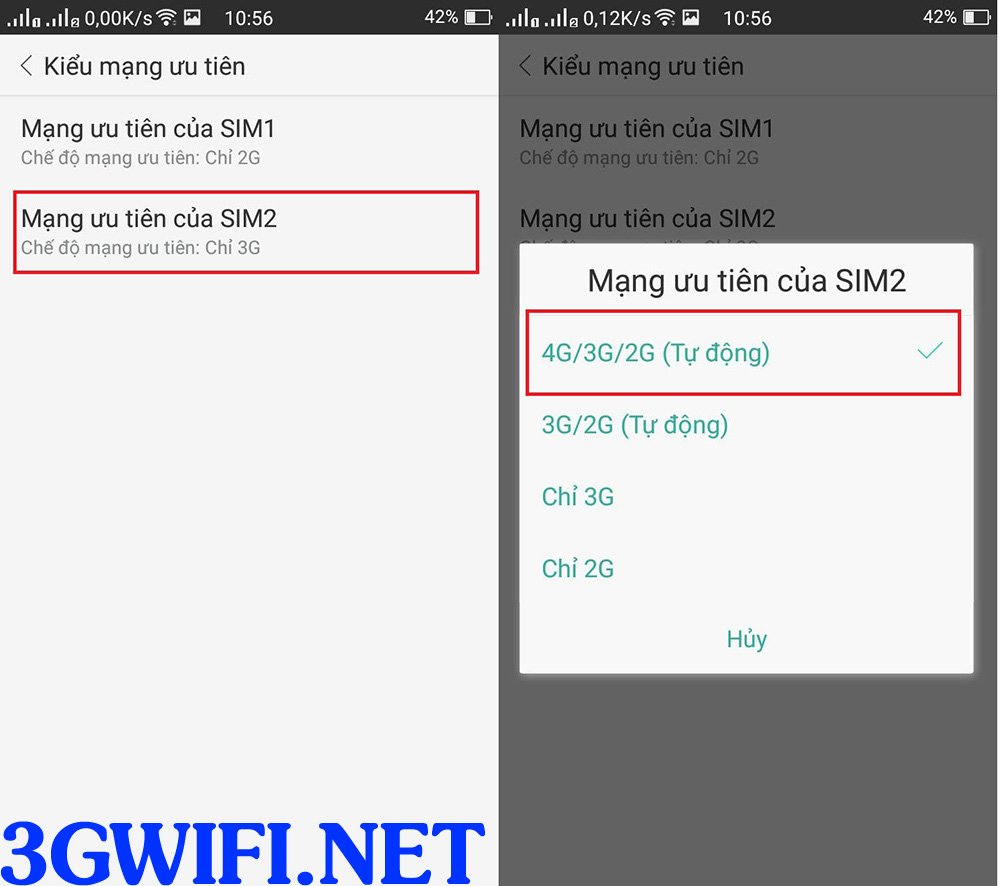
To fix this issue, go to Settings > Mobile Networks > Preferred network type/Network mode > Select '3G only' if you need high-speed usage, or choose '3G/2G auto' if you want to save battery or if you live in an area with a strong and stable 3G network signal.
To elaborate on the '2G Only' mode: this mode will help you save much more battery compared to other modes and also helps maintain the most stable signal reception.
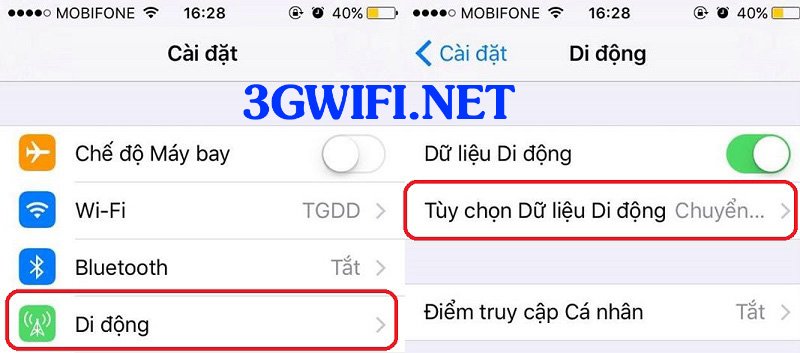
On iPhones, go to Settings > Cellular > Cellular Data Options.
>>> Are you looking for: best 3g wifi hotspot
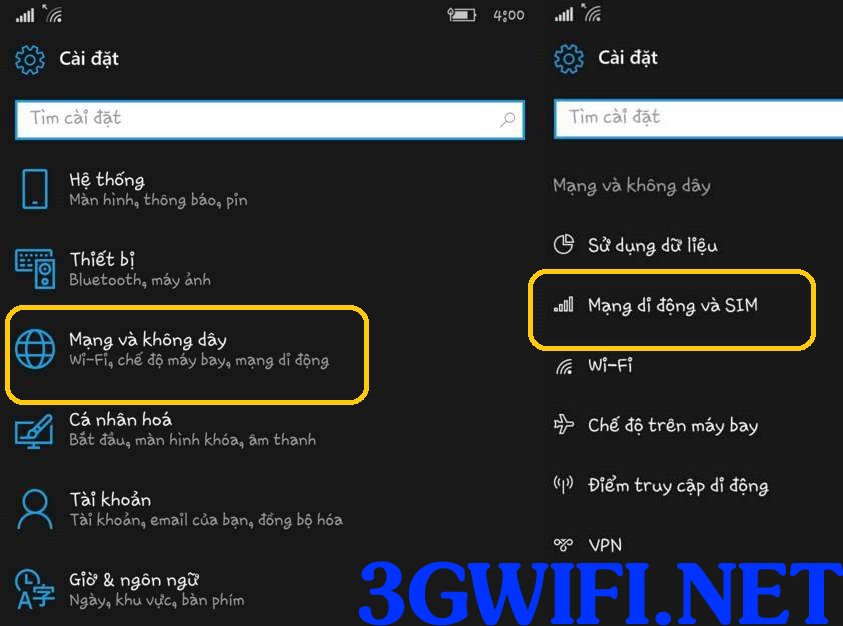
For Windows Phones, go to Settings > Network & wireless > Mobile network & SIM > SIM settings > Best connection speed > Choose the modes you desire.
Device is set to 3G only or Auto (2G/3G) mode, but the mobile signal is weak
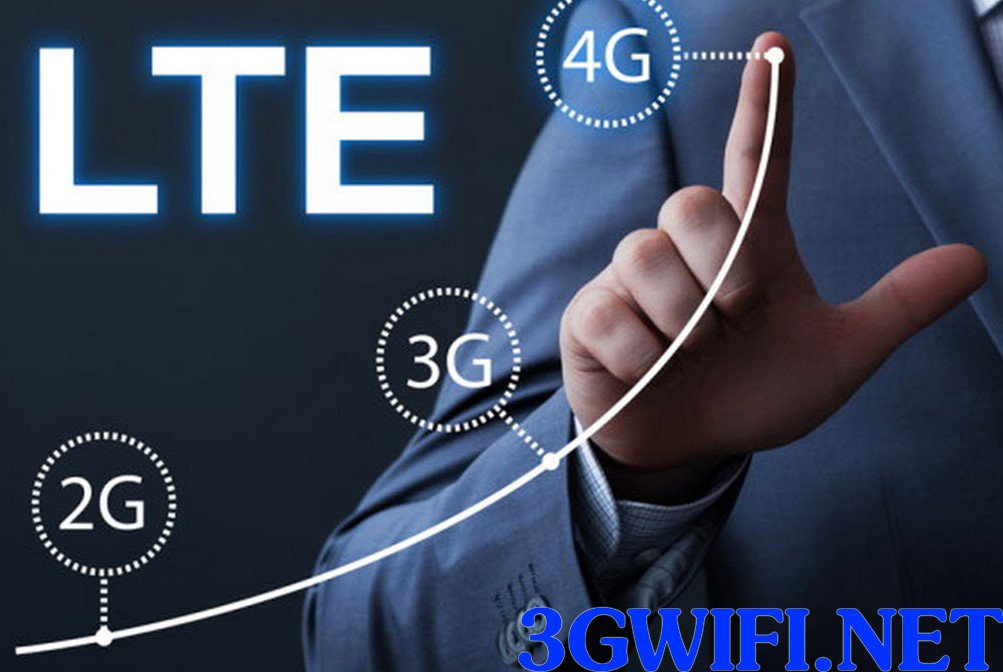
In some other cases, even though you have selected '2G/3G' mode, the signal in your living area is too weak, forcing your device to switch to 2G mode to maintain communication for your phone.
Alternatively, if you select '3G only' mode, your phone may lose signal if the signal is too weak. The solution is to switch back to 2G mode and move to a location with better signal to stabilize it.
Hope the above sharing will help you answer your questions or fix problems when you encounter similar issues above.