

 English
  Tiếng Việt
 Smart TVs nowadays can connect to Wi-Fi. And your phone can also connect to the TV via Wi-Fi. The article below will guide you on how toconnect iPhone to TV via Wi-Fi the simplest way.
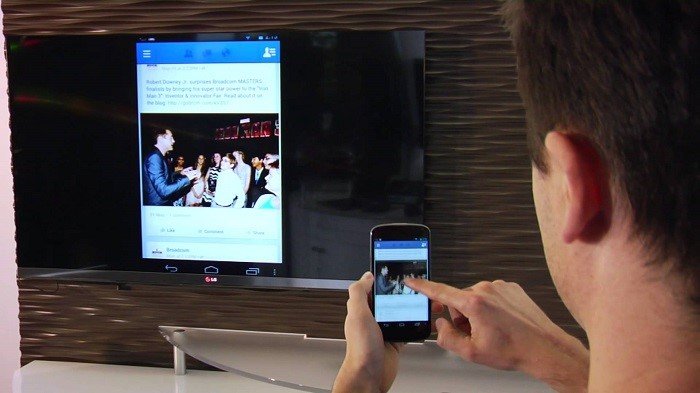
Connect iPhone to TV
How to connect iPhone to TV via Wi-Fi in the simplest way
Almost all TV brands have developed apps for users to control their TVs with their phones. Or in other words, the phone becomes a multifunctional remote control.
The first way is to use apps to connect
There are many apps available today that allow phones to connect to TVs via Wi-Fi.You can use these apps to connect iPhone to TV: Samsung smart View, TCL nScreen, Panasonic Remote, LG TV Plus.
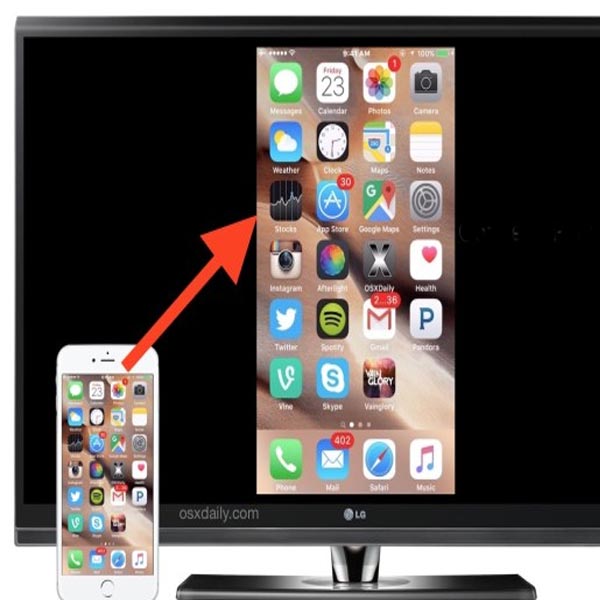
Connect iPhone to TV via Wi-Fi
>>> If you want to connect to the internet everywhere with stable speed, check out: 4G Wi-Fi router
The steps to connect are very simple:
First, connect your iPhone and TV to the same Wi-Fi network.
Then, download one of the apps above to your phone from the App Store.
Open the app and select the TV to connect to.
Perform the desired synchronization operations.
The second way is to use Airplay
Airplay is a wireless transmission method from iPhone to supported devices. Airplay is supported from iOS version 4.2 onwards. Most current iPhones will be supported. Airplay works by wirelessly connecting two compatible devices. The transmission speed to both devices is quite fast and the quality of the transmitted content is not reduced.
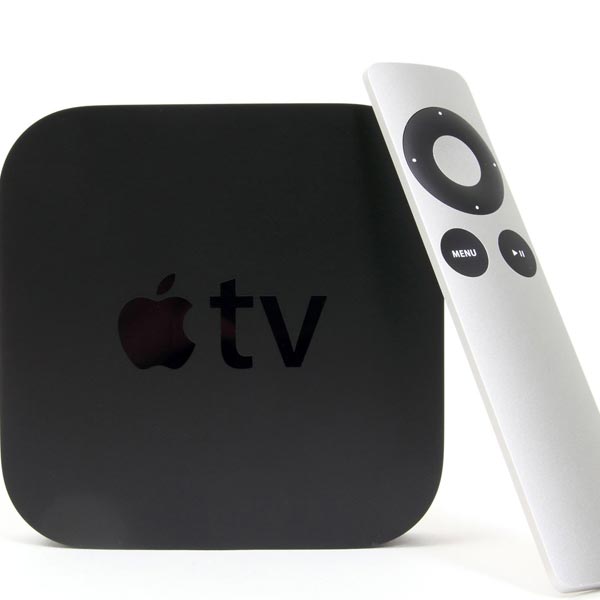
Apple TV
>>> If you are using event or meeting wifi with a large number of people, please see: event wifi
Note that Airplay can only work on Apple devices and devices that support Airplay. You can buy a compatible device sold at the Apple store. Its name is Apple TV, which connects to the TV via HDMI port.
You can connect your iPhone to a Smart TV with the following steps:
Step 1: Prepare an iPhone 4 or later and a TV with an Apple TV connection port.
Step 2: Connect Apple TV to the TV with an HDMI cable. Press the Source button. INPUT or the button with an arrow to select the TV's data input. Then select HDMI.
Step 3: Connect the TV and iPhone to the same wifi network. Turn on the Airplay feature on Apple TV by going to Apple TV settings, select Airplay, then turn it on. On your iPhone, select Airplay by swiping up from the bottom and select Apple TV to connect.
After completing the connection, you can open music files, videos, or any website from your phone to the TV.
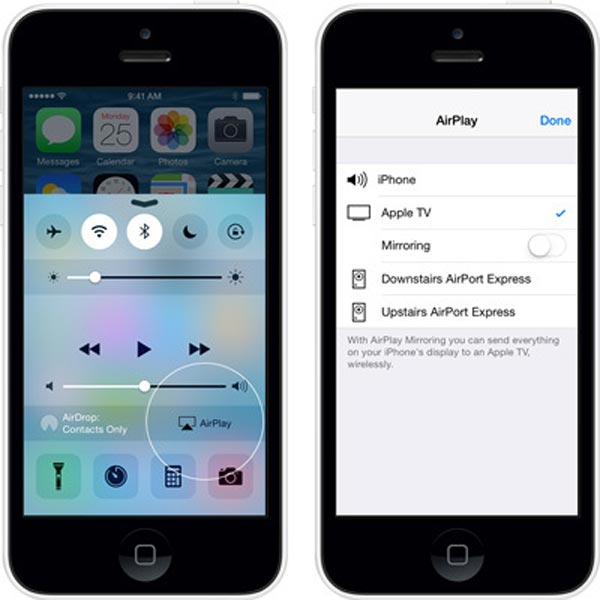
Connect via Airplay
Video guide on connecting iPhone to TV
Conclusion
So, to connect iPhone to TV via wifi, the simplest way is to use applications. You can also use Airplay to connect. Here are the specific steps to connect. Hope you have found an effective method for connection.