

 English
  Tiếng Việt
 You are facing a problem iPhone not connecting to wifi ? There are many reasons why your iPhone cannot find wifi. It could be that your device is too far from the router, the connection parameters are incorrect, or simply because the wifi password you entered is wrong. Whatever the reason, we will list all the solutions in the article right after this.
How to connect iPhone to wifi
Accept the terms and conditions when connecting to wifi
One thing to note is that when accessing wifi in public places, such as cafes, restaurants, or bookstores, they often have settings to collect your personal information for marketing purposes for their brand.
To use the wifi, you must fill in your personal information to meet the wifi usage conditions.
Connect wifi on iPhone
>>> If you want high-speed wifi with unlimited data, then: rent portable wifi
Reset wifi connection with the device
The setup method is the simplest and most convenient way to solve your wifi network error problem. If the problem is still not resolved, go to Settings > WiFi, tap on the network name that is having issues and select Renew Lease > Renew Lease. See if the device has been able to connect.
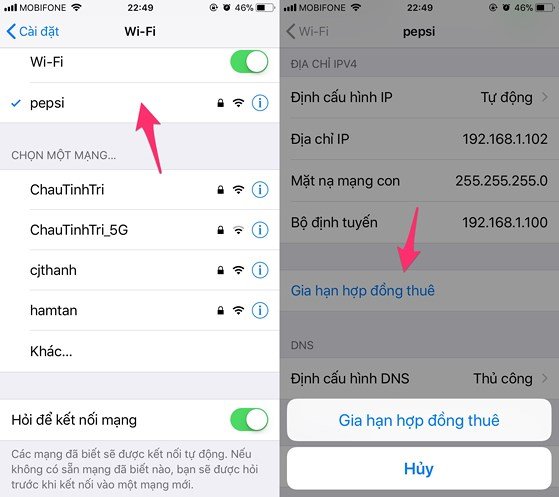
Simple connection setup for iPhone devices
Restart the wifi modem wifi
This method is considered the simplest. It is very likely that your 4G wifi device is faulty and needs to be checked to reset your wifi modem to its initial state. All activities on your smartphone will resume normal operation.
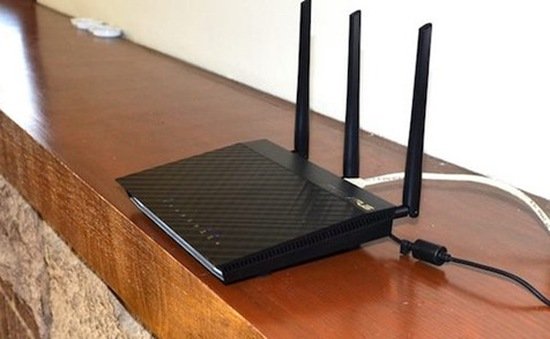 Check your router device when connecting
>>> If you need a wide-coverage wifi network for many users, learn about: 4G wifi router
Restart your iPhone
iPhone not connecting to wifi, so what you need to do to get your device reconnected and working normally again. First, restart your iPhone, iPad by pressing the power button + Home button at the same time until the Apple logo appears on the screen.
If you are using iPhone 8 or later, just go to Settings > General > Shutdown. Then press and hold the power button for a few seconds to turn the device back on (Apple logo appears). Alternatively, when charging the device, iPhone X or iPhone 8/8 Plus will also automatically turn back on.
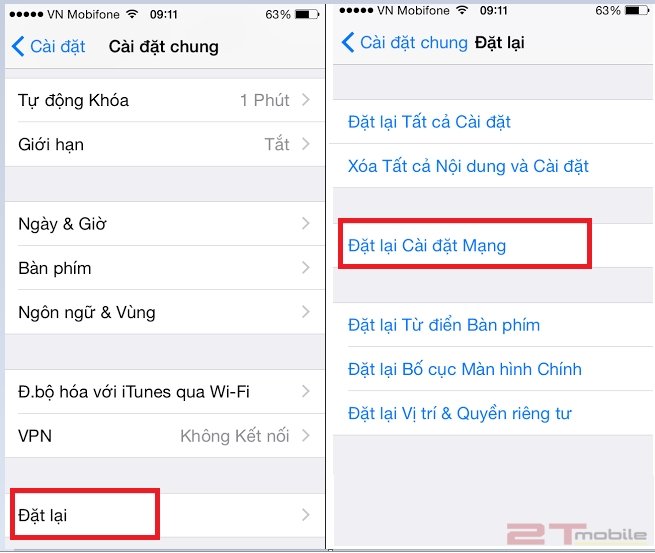
Perform the forget network action
When the wifi network password has been changed and the iPhone has not updated the password. To fix this, you need to do the following:
You need to check each character very carefully when entering. If you enter it incorrectly too many times, the user can choose to forget the network to re-enter the new password by going to Settings > WiFi, tapping the 'i' icon on the right corner and selecting Forget this network, then proceed to connect as usual. For Android devices, you can do the same.
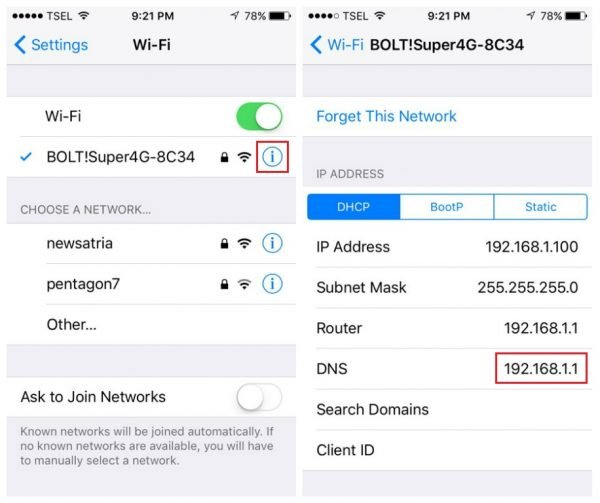
Guide to fixing iPhone not connecting to wifi
You now know the common wifi errors on iPhone and how to fix them. If your iPhone encounters such errors, try them out. Wish you success !