

 English
  Tiếng Việt
 Detailed guide on how to set up and change the wifi password of 4G Wifi RouterTP-link TL-MR3020 in the simplest way that anyone can do. To perform the process ofchanging the password of TP-link TL-MR3020 follow the instructions below.
How to set up and change the password for TP-Link TL MR3020
Step 1: Connect to the wifi of the 4G Wifi Router TP-Link TL-MR3020
You connect to the wifi by selecting the TP-link MR3020 wifi on your computer or phone. You must connect to the wifi to be able to set up and change the password.
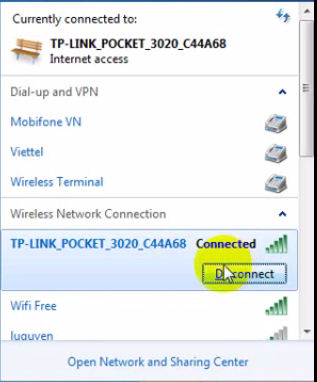 TP-Link TL-MR3020
It requires a password to access. You flip the back of the device and you will see it. The default password of the 4G Wifi Router TP-Link TL-MR3020 will be on the Router itself.
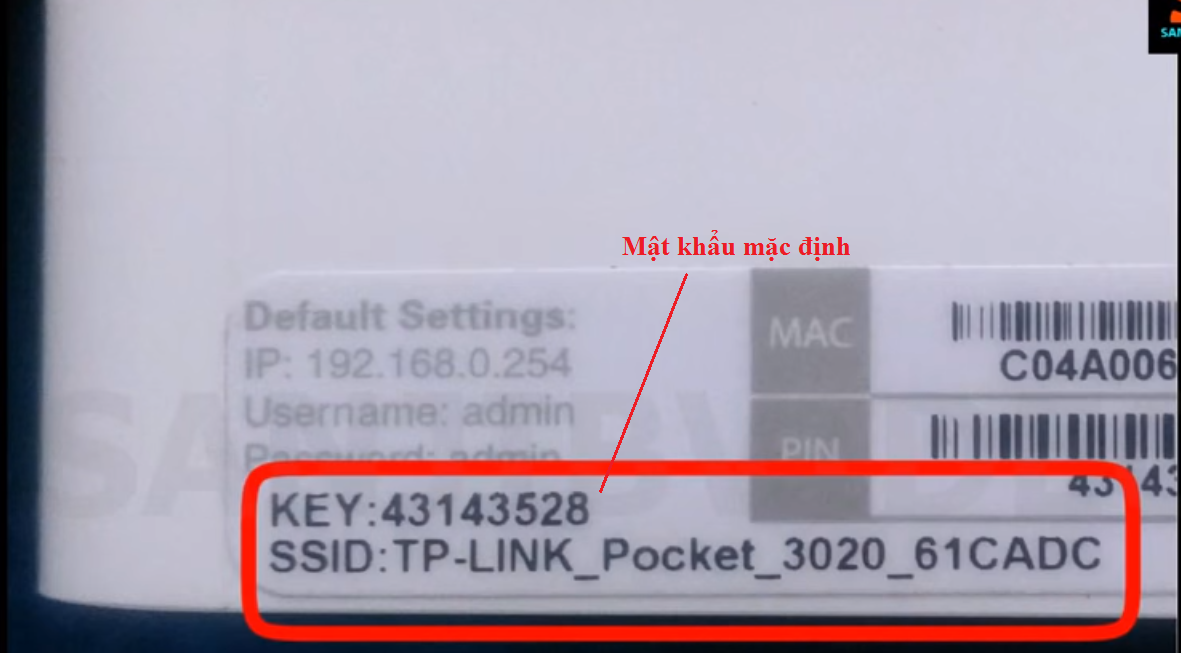 TP-Link TL-MR3020 Password
Step 2: Log in to the 4G Wifi Router TP-Link TL-MR3020
You access the browser and type the address192.168.0.254
Log in with the administrator account:
- Username: admin
- Password: admin
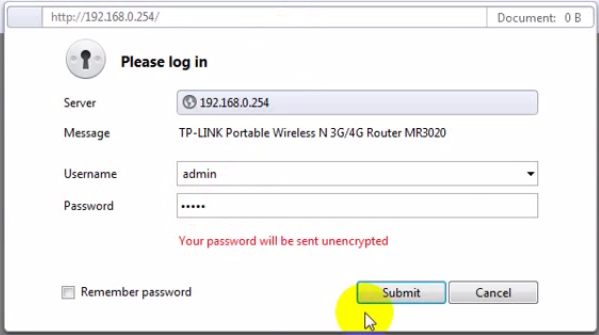 Login TP-Link TL-MR3020
>>> View details of the best wifi routers at: 4G wifi router
Step 3: Change the 4G wifi name of TP-Link TL-MR3020
To change the name, go to Wireless > Wireless Settings after changing, you Save again.
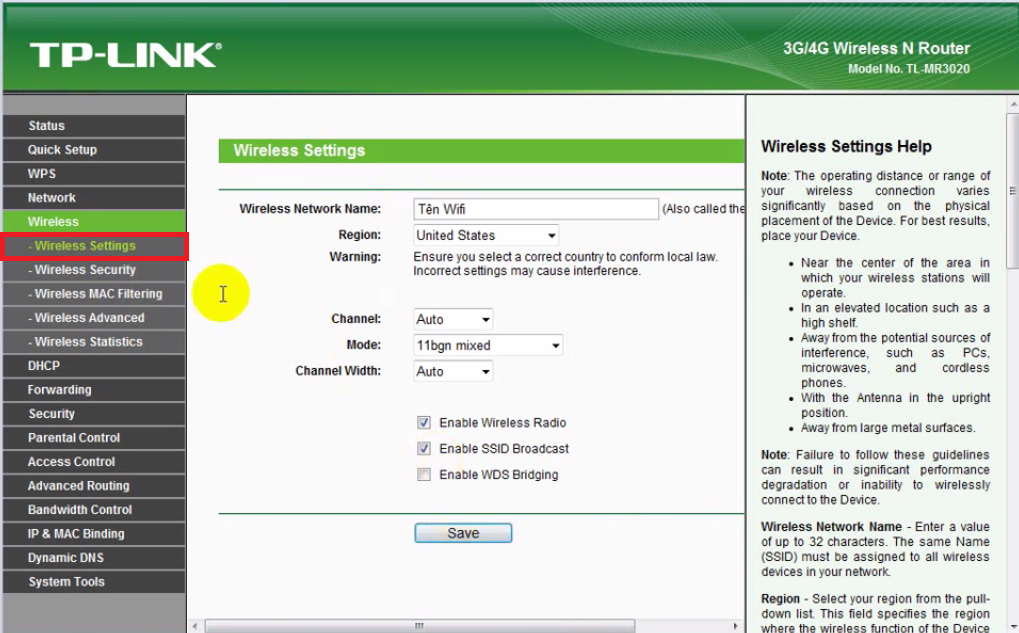 Change the 4G wifi name of TP-Link TL-MR3020
Step 4: Change password4G wifi router TP-Link TL-MR3020
To change the password, select Wireless Security after changing, scroll down and Save again. Vậy là quá trình đổi mật khẩu wifi đã thành công
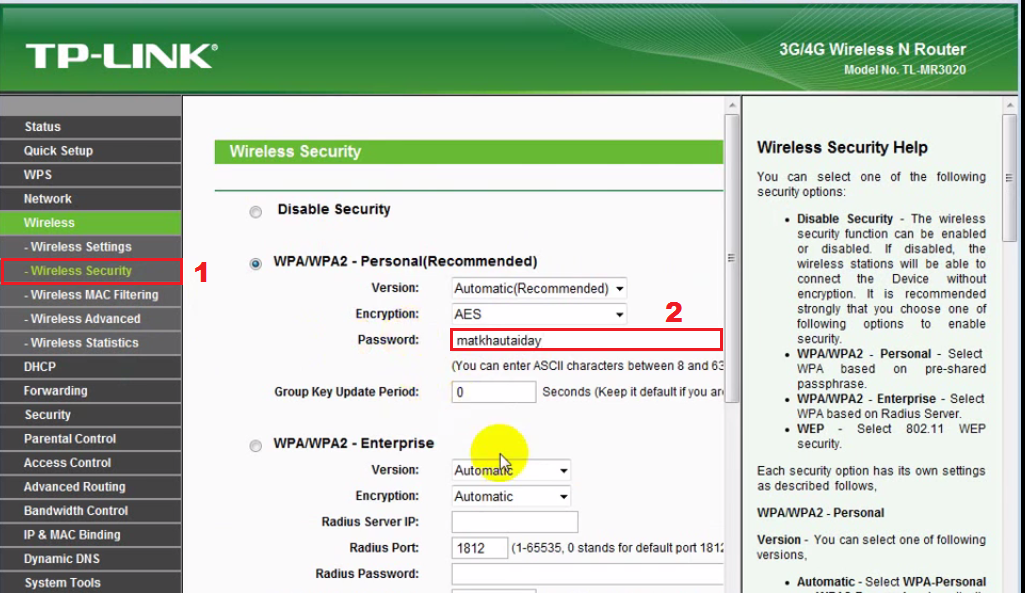 Change password TP-Link TL-MR3020
Video hướng dẫn cài đặt cấu hình Router TP-link TL-MR3020 từ A - Z
If you don't fully understand how to set up and configure the TP-link TL-MR3020 4G Wifi Router, you can watch the video below.
You have now successfully changed the password for TP-Linh TL MR3020. You no longer have to worry about anyone knowing your password and using it for free. If you accidentally forget your password, reset the device and change it again.