

 English
  Tiếng Việt
 Many people buy Tp-Link Mr3220 3G wifi router but after bringing it home, they encounter difficulties in the final setup for use, especially customers who order from afar. Understanding this, we would like to share this guide on how to use the tp-link mr3220 3G wifi router, hoping it will be of maximum benefit to customers.
Quick setup guide for Tp-link Mr3220 3G wifi router
Step 1: Connect your computer's wifi to the router (If no wifi, you can connect via network cable)
Plug in your 3G USB into the USB port on the back of the Tp-link Mr3220 which has been connected to power. Turn on your web browser and type 192.168.1.1 ==> a user-password entry box will appear
user: admin - password: admin
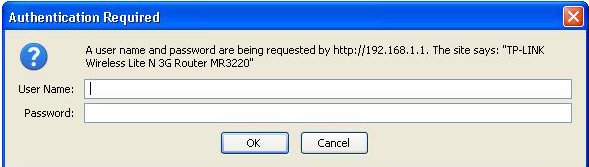
Connect your computer's wifi to the tp-link mr3220 wifi router
Step 2: After accessing the router's settings, go to the following sections to configure
Go to Quick Setup ==> Choose the router type you want to set
3G Preferred: Select 3G mode and another Internet connection. The 3G network will be prioritized, and when the 3G network is lost, it will automatically switch to the other network.
3G Only: Connect to the internet only with the 3G USB.
WAN Preferred: The opposite of mode 1.
WAN Only: Do not use 3G, use it as a normal router.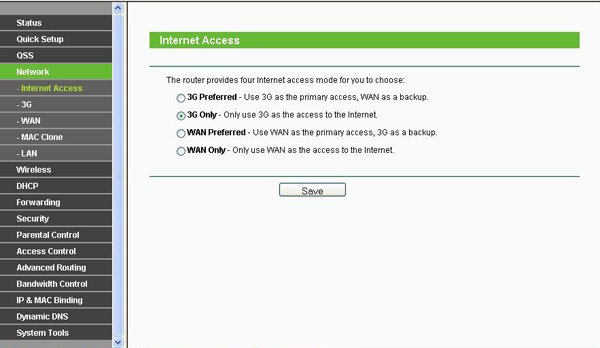
Choose the type for the tp-link mr3220 3G wifi router you want to set
Next, press Next to go to the next section.
Step 3: Check the "Set the Dial Number and APN manually" option to adjust 3G network parameters
Then you fill in the correct 3G network parameters for your network in the fields below (Viettel - Mobi - Vina ...)
3G settings for Viettel
Username: leave blank
Password: leave blank
APN: v-internet (for D-Com SIM APN: e-connect)
3G settings for Mobifone
Username: leave blank
Password: leave blank
APN: m-wap
3G settings for Vinaphone
Username: mms
Password: mms
APN: m3-world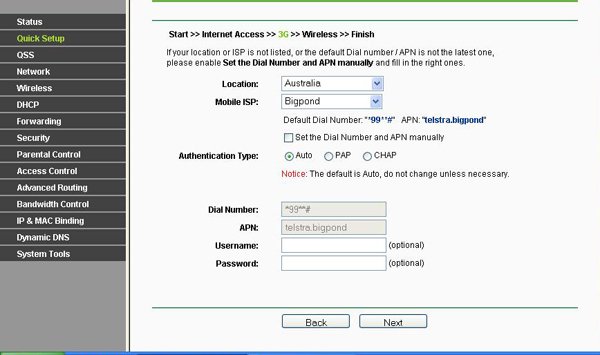
Fill in the correct 3G network parameters you are using for Mr3220
After filling in the parameters, continue to press Next
Step 4: Then it will switch to wifi settings. Please pay attention to the following parameters
Wireless Radio: set to Enable
Wireless Network Name: you can change the wifi name as you wish
Wireless Security : check the box WPA-PSK/WPA2-PSK: fill in the PSK Password field (from 8-63 characters)
Then continue to press Next
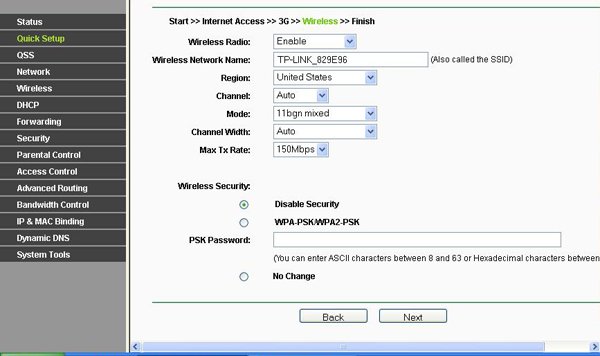
Configure the parameters for your wifi device
Then press Next and you're done
* Note:
If after following these steps, the signal bars do not appear in the 3G status section, it may be because the wifi device has not recognized the driver for the 3G USB.
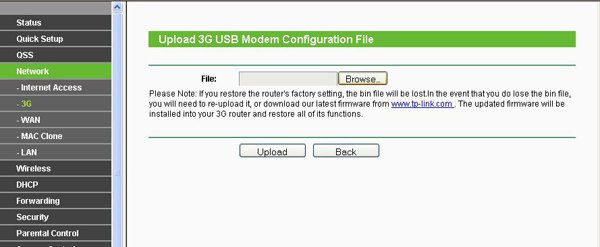
Go to Network ==> 3G ==> Scroll to the bottom and click the Modem Settings button ==> Click Add New then click on Browser, navigate to the driver you just downloaded and then click Upload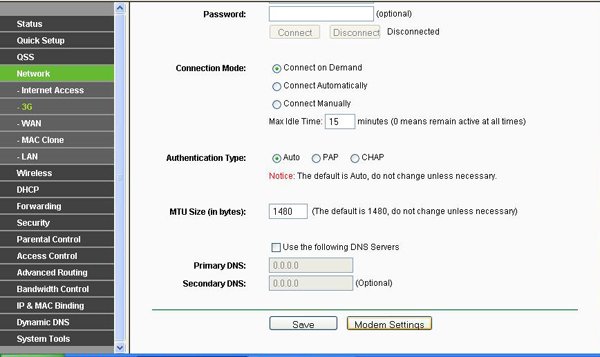
Video tutorial for TP-Link MR3220 device
Article edited and updated on 14/01/2020