

 English
  Tiếng Việt
 Common data sharing methods that people use to transfer data or connect between two computers are usually via USB. However, these methods still encounter many problems and inadequacies in the processing. But nowadays, there is an extremely fast data sharing method that does not require USB anymore. In this article, we will guide you throughhow to transfer data between 2 computers via wifi.

What to do to transfer files between 2 computers?
The utility of transferring data between 2 computers via wifi
To share files via wifi, many people often use supporting software and tools to process. One of the popular tools used by people is the File Drop application.
When installing and using the application, it will automatically find and connect devices that share the same network. Users can use this application to transfer files extremely quickly.
However, when you transfer data through this application, it is often not secure for the data information. When you send files to the application, it means you have stored data with a third party. When you transfer data between 2 computers over wifi, this will be completely secure. Right now, we will show you the most secure way to transfer data.
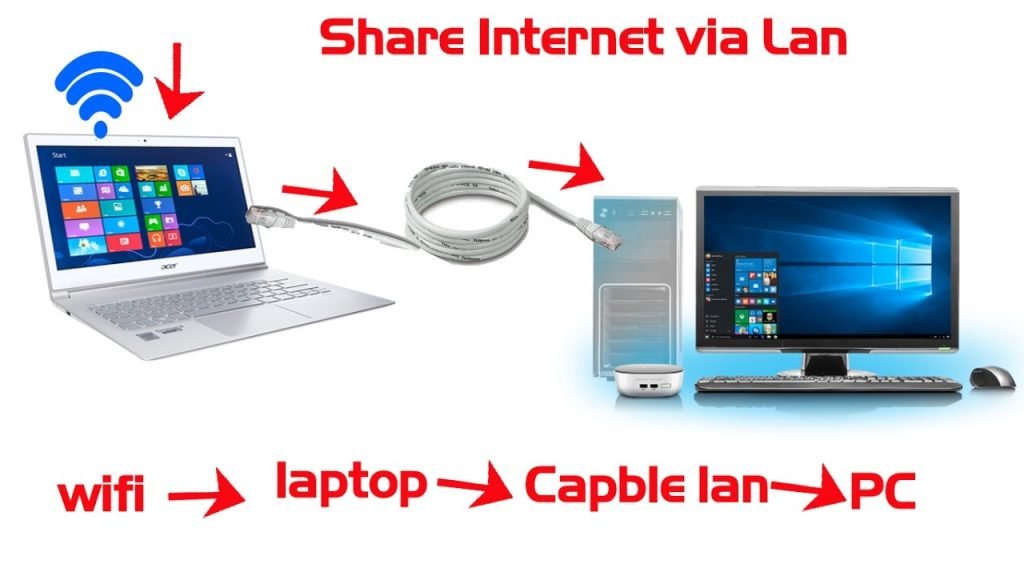
Software and tools to support file transfer
How to transfer data between 2 computers via wifi.
1. Preparation steps
To transfer files between 2 computers, the first thing you need to do is prepare the necessary conditions. These are mandatory conditions if you want to transfer data between 2 computers via wifi:
+ Both computers must use the same wifi network broadcast from a common modem.
+ Or you can also use a network cable with two connection ends. Use it to connect the network cable between the sending computer and the receiving computer.
+ Both computers must use the same operating system to be able to transfer data.
2. Steps to accurately share data between 2 computers via wifi.
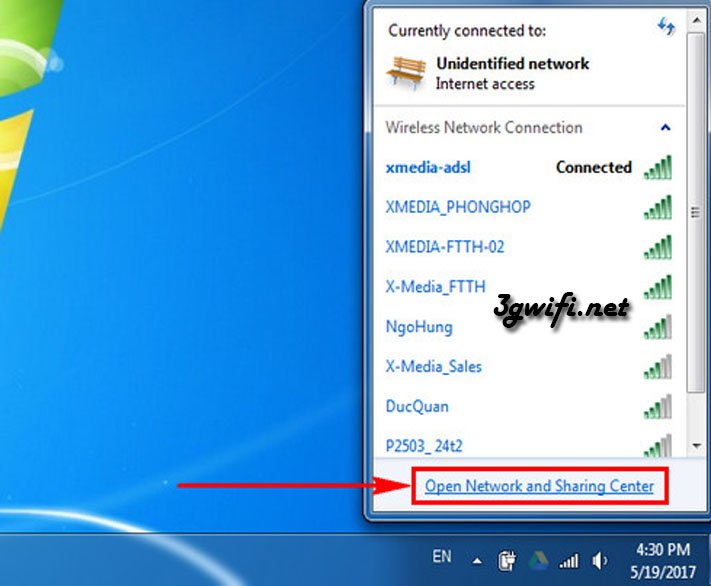
Step 1: To quickly access the WiFi connection you are using. Left-click on the WiFi icon in the corner of the Taskbar and select Open Network and Sharing Center.
Step 2: Pay attention to the View your active networks section, click on Wireless Network Connection.
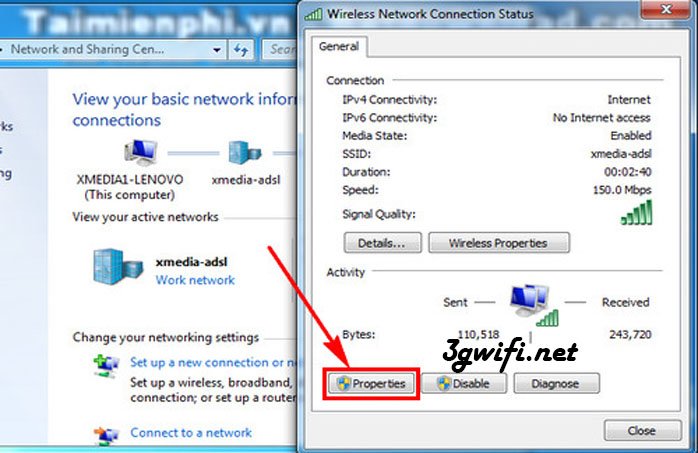
Step 3: The Wireless Network Connection Status dialog box appears, now select Properties
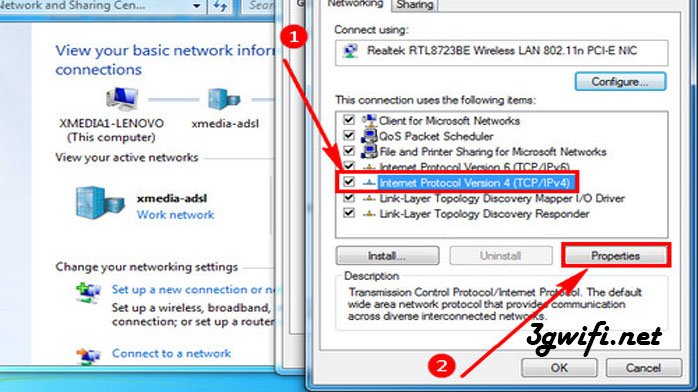
Step 4: To customize the WiFi IP on the computer, select Internet Protocol Version 4 (TCP/IPv4). Click Properties.
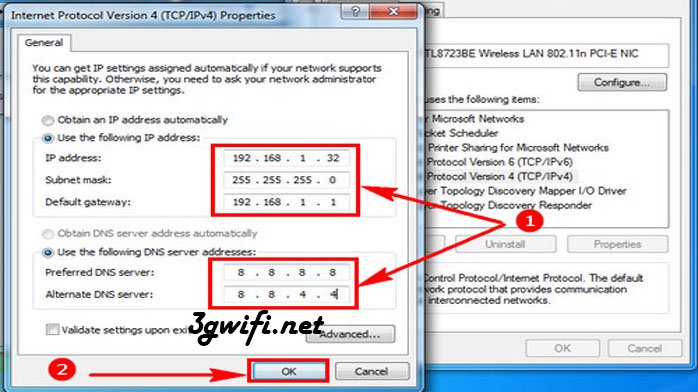
Step 5: Check the box Use the following IP address and enter the static IP address you want to set. Click OK to save. Do the same on the computer you want to share files with via WiFi.
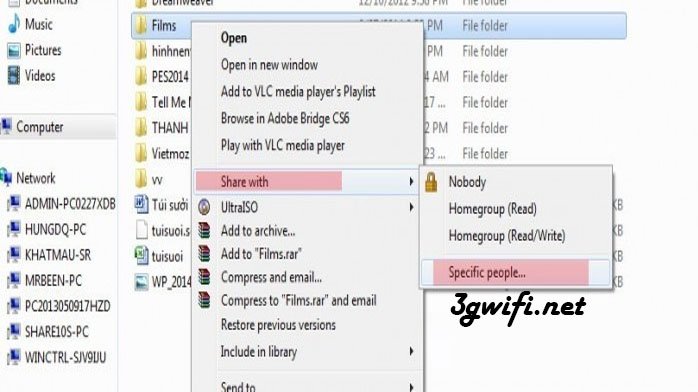
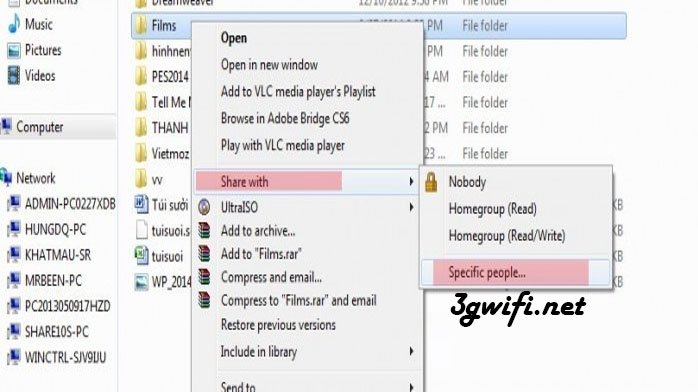
Step 6: After completing the file sharing setup via WiFi on both computers. Open the file you want to share, right-click, select Share With, and choose Specific people.
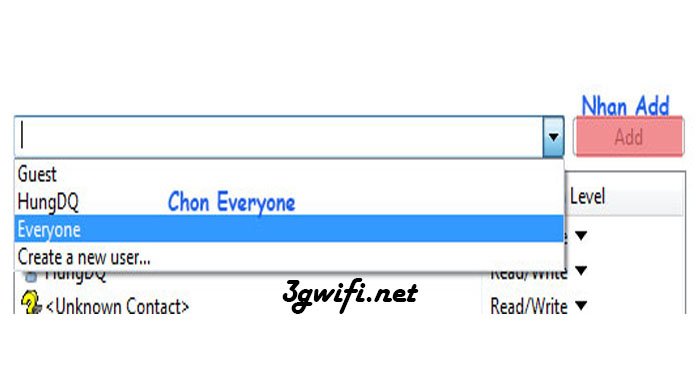
Step 7: When the File Sharing dialog box appears, select Everyone.
You can select Read for the computer connected to the same WiFi to copy data.
Step 8: Open My Computer > Network, you will see computers connected to the LAN and WiFi with your computer.
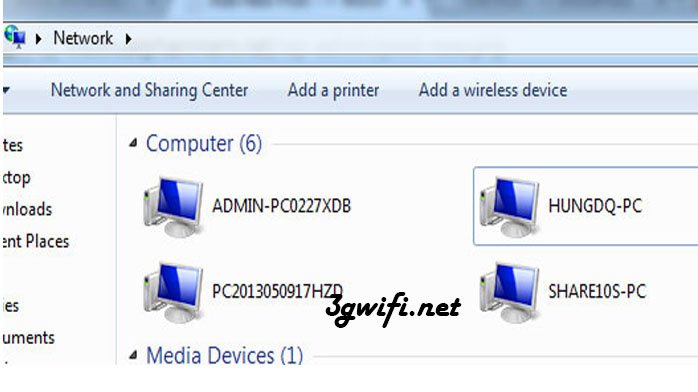
Now choose the computer you want to get files from. You will see the folder that the other computer is sharing files from, now just copy the data to your computer to succeed.