

 English
  Tiếng Việt
 Tenda 3G185 is a 3G wifi router with password settings to control the number of users connected to it. But many customers when buying Tenda 3G185 struggle with changing the usage password. This article will guide you on how to change the password
How to change the password for Tenda 3G185 3G wifi router
Step 1:
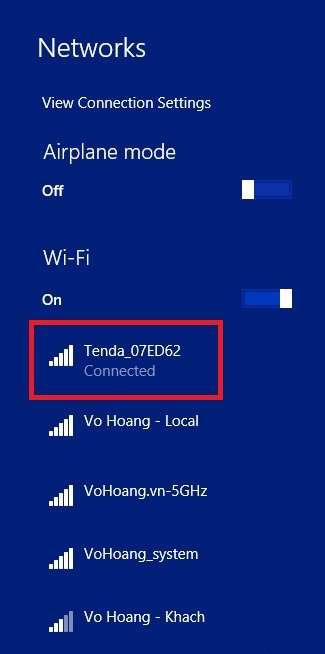
After inserting the 3G sim, battery and turning on the device (press the power button for 5 seconds), the device will automatically broadcast a default wifi usually named Tenda_xxxxxx (xxxxxx is any code) with the password 123456cd. Proceed to connect to the device's default wifi.
Step 2:
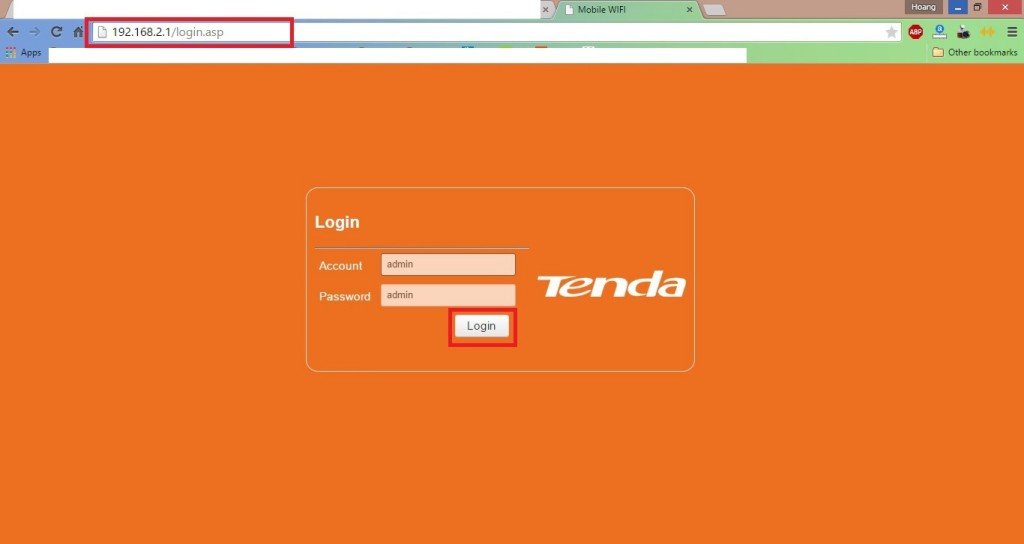
- Use any browser (Google Chrome, Firefox, Safari, InternetExplorer, ...) type in the address 192.168.2.1 to access the configuration page of the Tenda 3G185.
- device. Default 2 frames Account and Password will be pre-filled as admin admin. You do not need to change anything, click the Login button to continue.
Step 3:
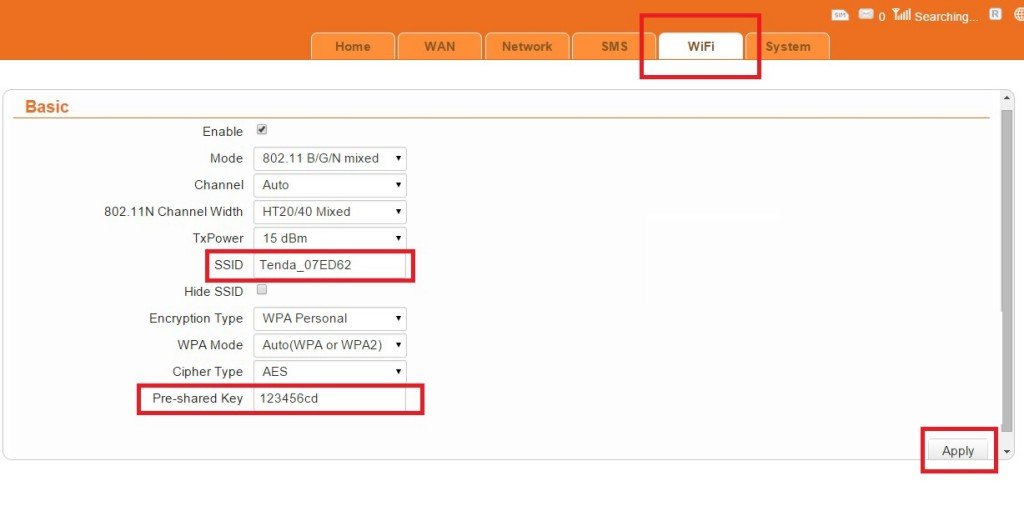
When you get to the device configuration page. You perform the following steps in order.
- Select the tab with the word WiFi in the upper right corner.
- Enter the new name for the wifi network you want in the SSID box
- Enter the new password for the wifi network you want in the Pre-shared Key box
- Finally, click the Apply button in the bottom right corner to complete
Done! now you have your own wifi network and whoever wants to use it must ask for your password to access it. Have fun.