

 English
  Tiếng Việt
 In modern society today, 3G wifi hotspot devices are no longer strange to everyone. Almost every home, every company, factory... has wifi hotspots to serve the need to access the internet anytime, anywhere without needing tangled and cumbersome network cables. But few people know that to set up a 3G wifi hotspot device properly and ensure its security requires basic knowledge. Here, I would like to introduce a guide to setting up a 3G wifi hotspot, brand new, guaranteed 100% success.
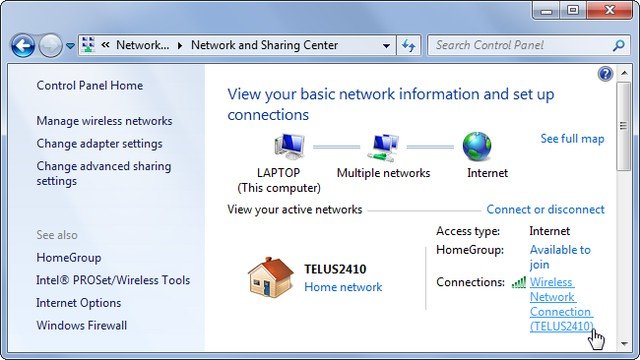
Step 1: First, enter the IP address of the wifi hotspot into the web browser's address bar and search to access the router's setup interface. When you buy the product, you will receive a manual which contains the default IP address.
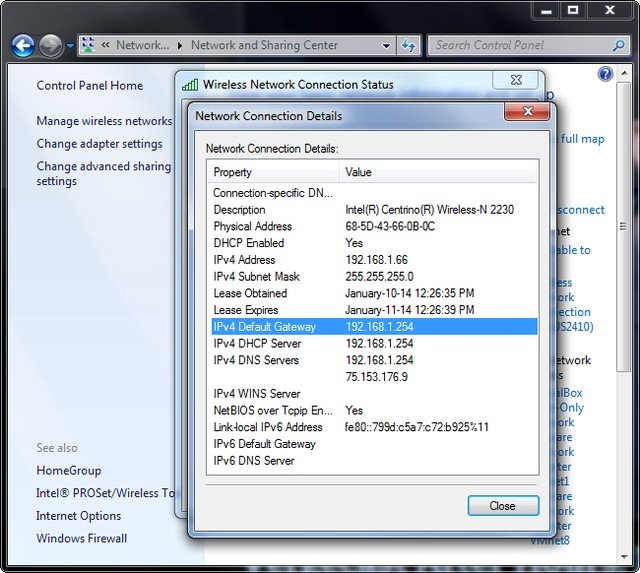
If you lost it or don't have it written down, there is a simpler way: open Control Panel, then select Network Status and Tasks right below IPv4 Default Gateway. Then, left-click on the wifi network icon you are using to connect. Then select Detail and look at the address next to IPv4 Default Gateway, which is the IP address of the wifi hotspot.
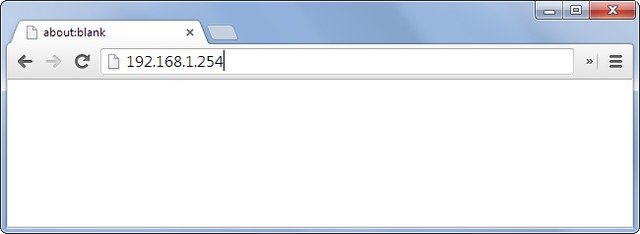
Step 2: Enter the IP address above into the web browser's search bar and press Enter.
Step 3: After entering, you will be prompted to enter login credentials. Sometimes, some router providers will ask you to confirm some information before requesting the account details. You must have a username and password to access and configure the settings inside. The steps above will ensure that others on the network cannot access the setup interface to change information you do not allow.
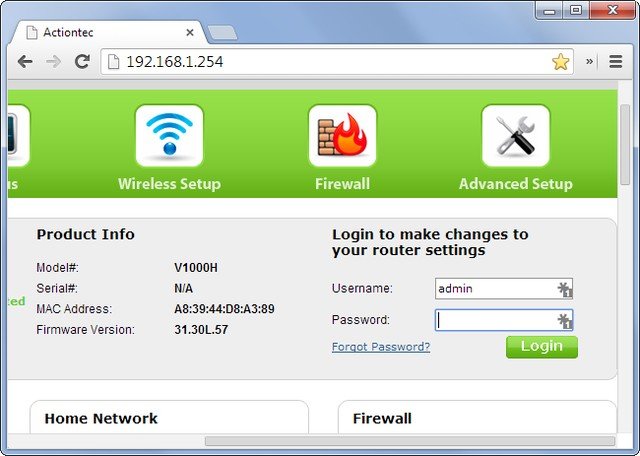
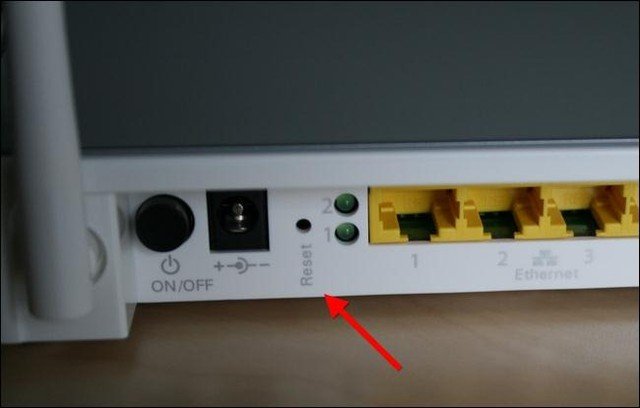
Step 4: In the instruction manual, the account name and password are listed. Alternatively, you can log in to the website routerpasswoeds.com and enter the serial number to retrieve your username and password. If you change your password and forget it, you can still recover it by restarting the router to revert to the original default account and password. The Restart button is usually recessed on the underside of the router. After pressing the button, all previous settings will be erased, and you will have to redo the steps from the beginning.
>>> No unlock needed if you have: 4g sim wifi router
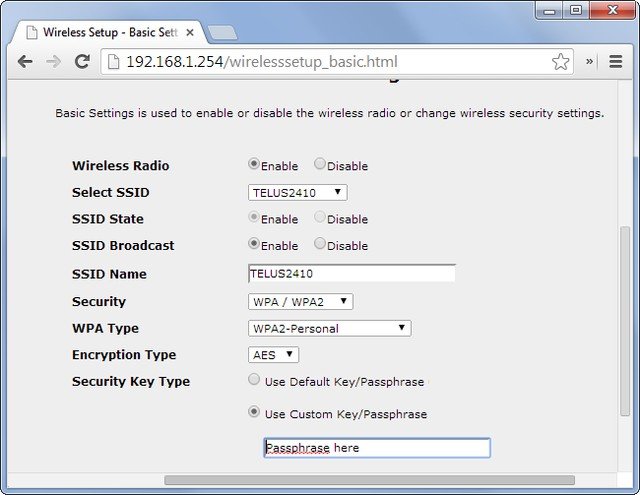
Step 5: The next step after successfully logging into the router's settings interface is to change the settings according to your preferences. An important note is that after making any setting changes, you must click the Apply or Save button to execute the commands you just made.
Step 6: If you want to change a certain function, you need to understand what that function does. For example, the Access Restrictions section will help you manage the devices accessing your internet network. This is an extremely useful function for parents who want to control their children's internet usage. These are the basic steps; here are some useful settings I want to introduce further.
Depending on the router models from different manufacturers, you can mostly find the list of connected Wi-Fi devices under the wireless section. In this article, I am using a Linksys router, so the list is in the DHCP Client Table under the Status section.
Change Channel
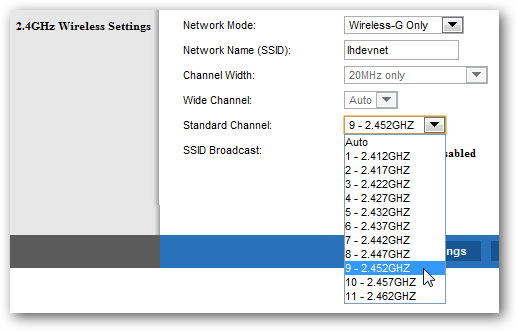
Step 7: Choosing the right channel that is compatible with the devices you are using will significantly increase the signal reception capability.
QoS Function
A very important section that helps improve connection quality for certain user requests or applications. Most standard routers have a QoS section available; however, some manufacturers design specific router versions with different QoS settings to increase the product's price.
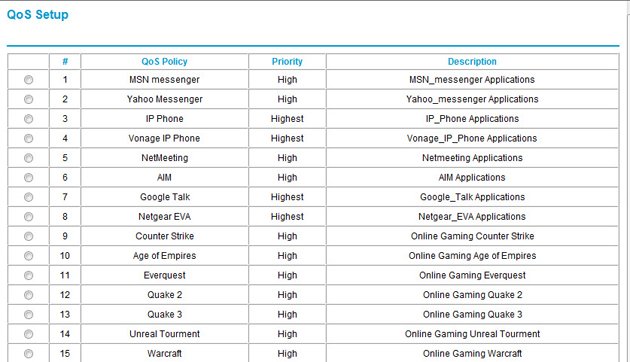
Step 8: When this function is enabled, you can customize the bandwidth priority for each application and connection. For example, in the case above, I prioritized the game Đế Chế (Age of Empires) to "High" priority, meaning a high level, to avoid lag when playing the game.
Set up dynamic DNS address
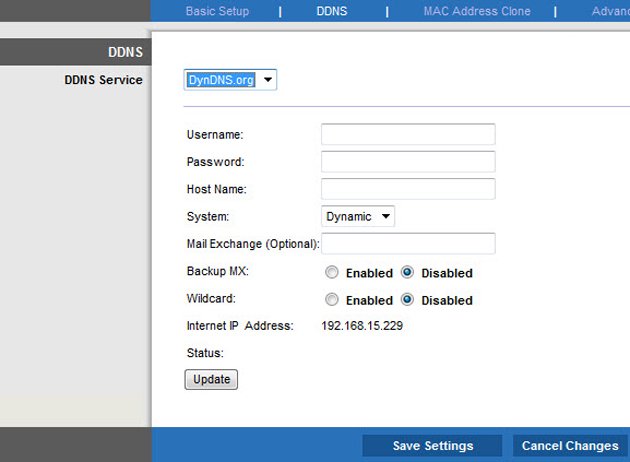
Step 9: This is a rather nice and popular feature on routers today. When using the DDNS function, users assign the router's dynamic public IP to a separate domain name. However, if you want to use this function, you must register for the DDNS service with a domain name provider. This service is often used by customers with tight budgets....
Hopefully, the above setup method will be useful information for you. To support us, you can also refer to some devices 3g usb wifi router from our center here.
The article was edited and updated on 01/14/2020