

 English
  Tiếng Việt
 Wifi is becoming increasingly popular in today's technological lifestyle. Using wifi helps people access information easily. Your family has a wifi router but it is often used by some people for free, causing problems with your internet access speed. So, how to "block wifi users"? We will answer all of that right after this. "Ways to block wifi users" "Ways to identify people using your free wifi" To detect who is using your free wifi, you should do: For Android interface, download and install the Fing application. Go to CH Play to download the app, follow the instructions and install it. For iPhone interface, you also need to download the Fing application to your device. Go to the Safari icon to download and install according to the instructions. The steps are as follows: Step 1: Launch the Fing application downloaded in the step above. Step 2: In the application interface, you will be able to check all devices that are accessing your wifi device. Fing app checks wifi connections "Ways to block free wifi users on smartphones (iPhone, Android)" When the Fing application is installed on your device, open the application. All data about users accessing your home wifi will be displayed. Note that you should choose the person with the longest access time that you need to remove. When you find the free access device, you need to click on the device name to get the MAC address. Next, type the IP address "192.168.1.1" in the search bar of your smartphone. Enter the username and password for your wifi modem account. On the router configuration interface, click onchặn người dùng wifi tiến hành như thế nào? Tất cả sẽ được chúng tôi trả lời ngay sau đây.
Những cách chặn người dùng wifi
Những cách nhận diện có người sử dụng wifi chùa nhà bạn
Để phát hiện những ai đang dùng wifi chùa bạn nên thực hiện :
Đối với giao diện Adroid hãy tải và cài đặt ứng dụng Fing. hãy vào CH play để tải ứng dụng về làm theo và cài đặt chúng.
Đối với giao diện Iphone bạn cũng cần tải ứng dụng fing vào thiết bị. Vào biểu tượng Safari để tài cài đặt theo hướng dẫn.
Các bước được tiến hành như sau:
Step 1: Khởi động ứng dụng Fing đã được tải về ở bước ở trên.
Step 2: Tại giao diện của ứng dụng bạn sẽ kiểm tra được tất cả những thiết bị mà đang truy cập đến thiết bị wifi của bạn.
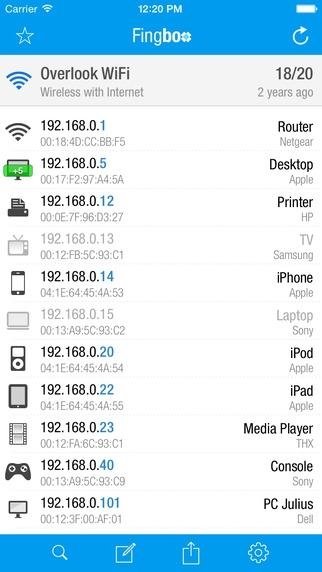
Ứng dụng Fing kiểm tra những kết nối wifi
Những cách chặn người dùng wifi chùa ở trên điện thoại thông minh ( iphone, adroid)
Khi ứng dụng Fing được cài đặt vào thiết bị của bạn hãy mở ứng dụng ra. Tất cả những dữ liệu về người sử dụng đang truy cập vào wifi nhà bạn. Lưu ý đó là hãy chọn một người có thời lượng tuy cập nhiều nhất mà bạn cần loại bỏ. Khi tìm thấy thiết bị truy cập chùa bạn cần chọn vào tên thiết bị để lấy địa chi MAC.
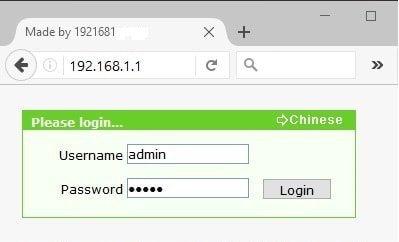
Tiếp theo hãy gõ thanh địa chỉ IP 192.168.1.1 trên thanh tìm kiếm của thiết bị smarphone của bạn. Hãy nhập tên và mật khẩu của tài khoản sử dụng ở Modem wifi nhà bạn.
Trên giao diện cấu hình router các bạn nhấn vào chọn Wireless MAC Fireless then select Enable and finally click on Add New to select the MAC address to block.
In the MAC address information, please enter the MAC address of the device that has accessed your Wi-Fi network into the MAC Address field, then click to select Status, then click on the Status icon and continue clicking on Save to save the blocking process.
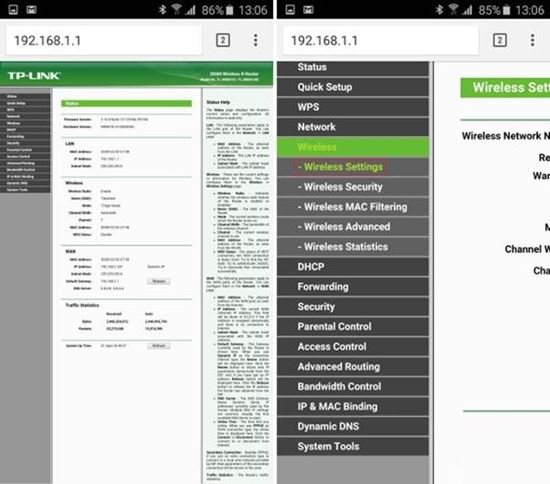
Go to the address 192.168.1.1 on your Smartphone
Methods to block unwanted Wi-Fi users on laptops and desktops.
To block unwanted Wi-Fi users on a laptop, you need to follow these steps:
Step 1: Download and install Wireless Network Watcher on your computer to proceed with the steps.
Step 2: The Wi-Fi management program Wireless Network Watcher will scan all connections to the network and list IP address and computer name information. At this point, you will know which computers are connected to the wifi network and then proceed to block them.
Step 3: Set the scan interval to know if anyone has accessed your Wifi network during the scan time. To do this, go to Options -->Advanced options.
In the section Background scan interval enter the time interval for the program to automatically re-scan. If someone connects, the program will notify you, allowing you to know if someone is using your Wifi for free. You will be able to identify which device's free wifi usage you need to block.
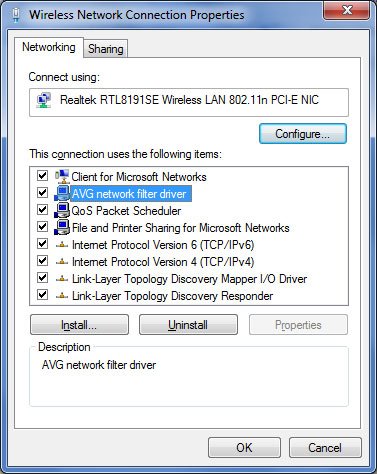
Step 4: There are two reasons why someone might be using your Wifi for free: either you have not set a password for your wifi modem, or your modem's paswword wifi has been leaked. If you think this is a cause for this situation, change your wifi password immediately.
If you find the above method not entirely suitable, you can try another method as follows:
Step 1: For the method of getting the MAC address of the device accessing your wifi illicitly, follow the steps above.
Step 2: Open a web browser, type the address 192.168.1.1 then enter the username and password for the wifi modem you want to block unnecessary connections to.
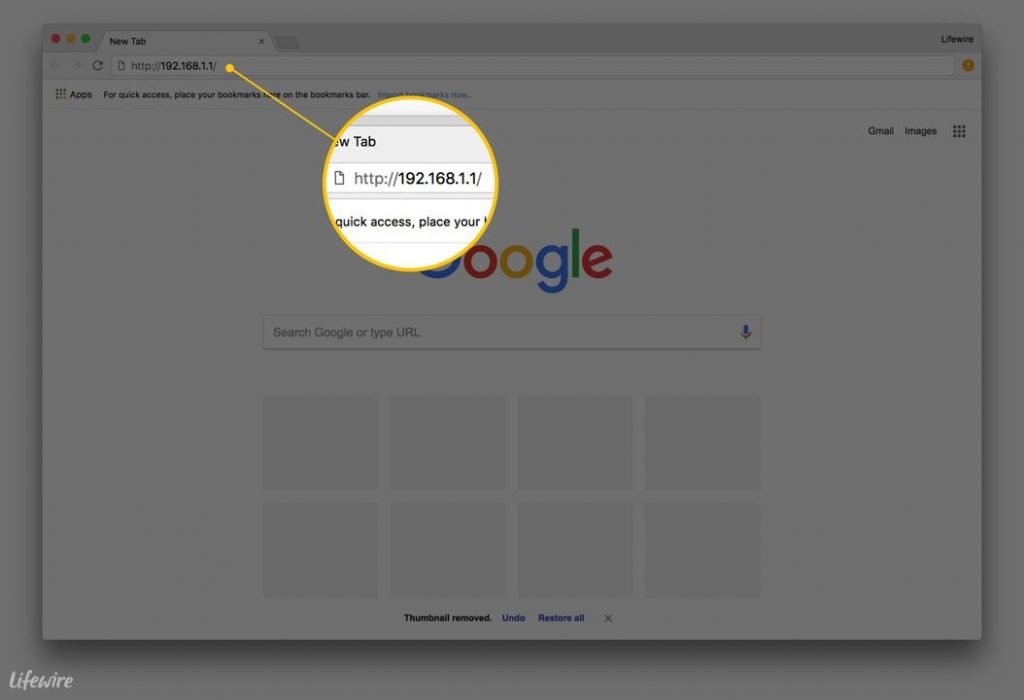
Go to the IP address on the laptop
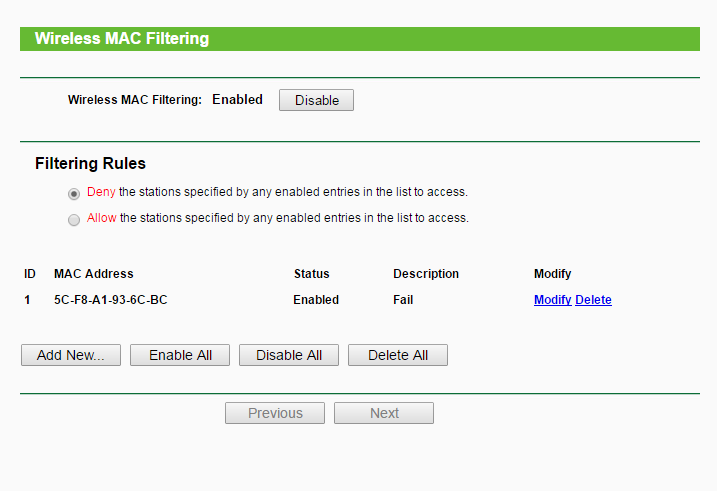
Step 3: When the interface appears, go to wireless-->Wireless MAC Filtering, Click on Add New.
Step 4: At MAC address enter the MAC address of the device you want to block from connecting to Wi-Fi, at Description select Wireless MAC Filter One select Enable at the Status.
Go back to Filtering Rules check Deny the stations... simultaneously click Enable to turn on Wireless MAC Filtering.
The information we provided above surely helps you know how to block Wi-Fi users. With these tricks, no one will be able to access your home Wi-Fi modem without your permission anymore. Wish you success.