

 English
  Tiếng Việt
 4G LTE technology was born and also marked the birth of supporting devices. You have just bought the ZTE MF65 wifi hotspot and are struggling with how to use and set up the device. If you are facing these issues, please refer to our article "how to use Maxis MF65 wifi hotspot" right below.How to use MF65 wifi hotspotSpecial uses of the Maxis MF65 wifi hotspot
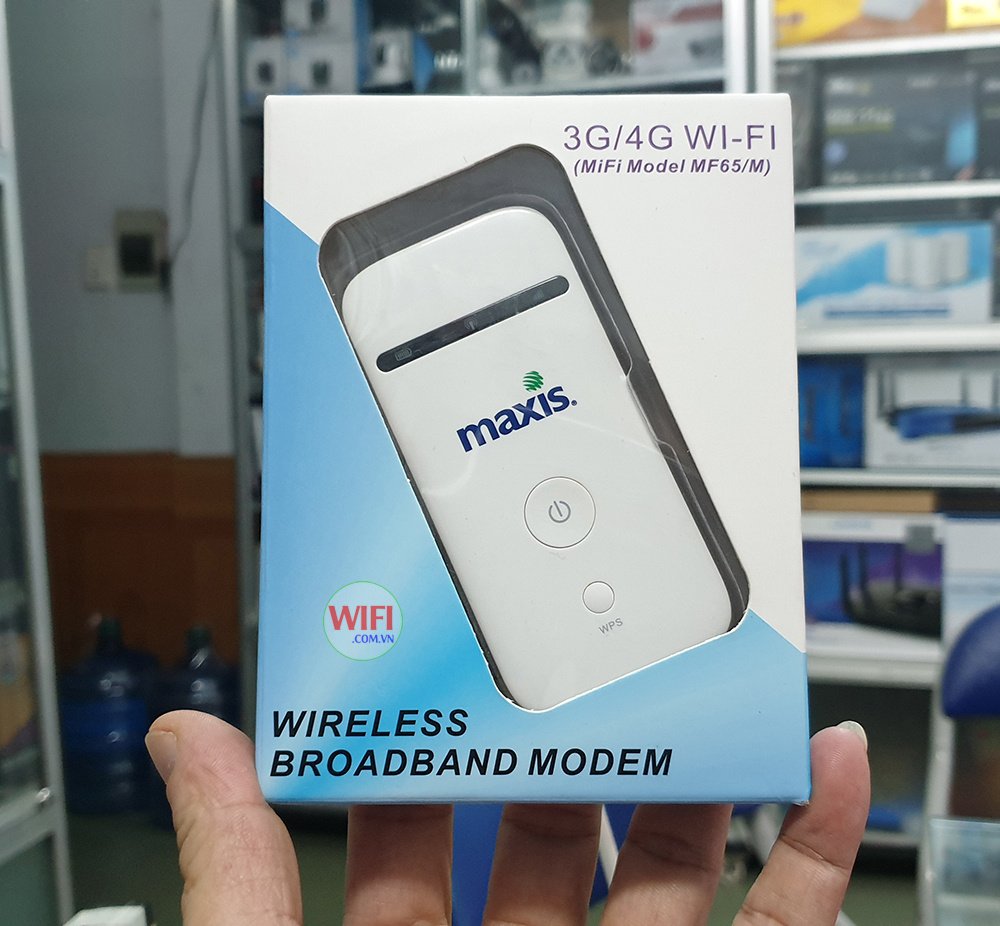
When choosing a wifi hotspot device, the first thing you need to do is learn about its uses. If anyone still doubts its usefulness, please refer here:
The Maxis MF65 wifi hotspot is a mobile wifi signal transmitter from a 3G SIM.
The device can connect up to 5 devices simultaneously.
It is an international version that supports all domestic and international carriers. You just need to insert the SIM card to use it.
With many outstanding features
The wifi connection speed is 150mbps, the standard supports the best security.
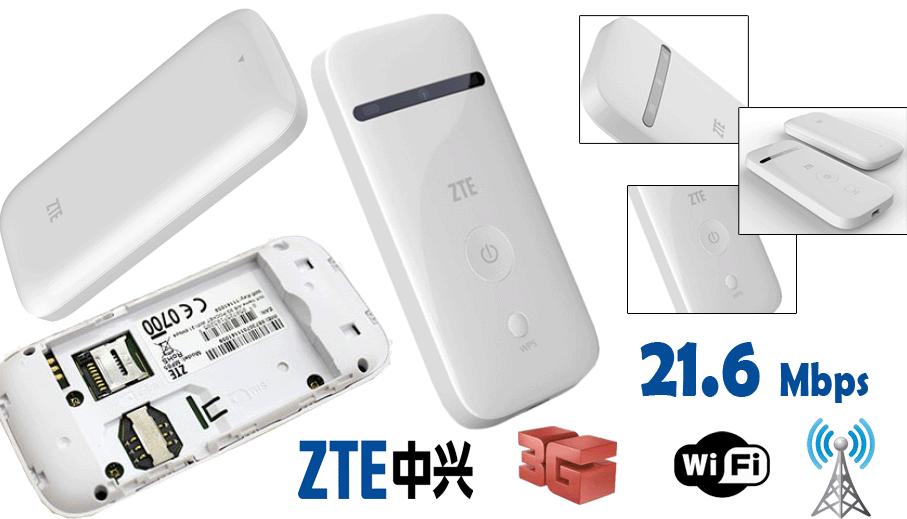
It has a display screen showing battery status, wifi signal, and operating status.
The battery has a good capacity, with a maximum continuous use of up to 5 hours, and a standby time of up to 280 hours.
The Maxis MF56 wifi hotspot has a compact and beautiful design, and can also adjust the automatic on/off time when no device is in use.
Instructions on how to use the Maxis MF65 wifi hotspot
To set the wifi name and password on the device, do the following:
Video tutorial on how to use and change the password for the zte mf65 hotspot
https://youtu.be/UIt3yBmjMg8
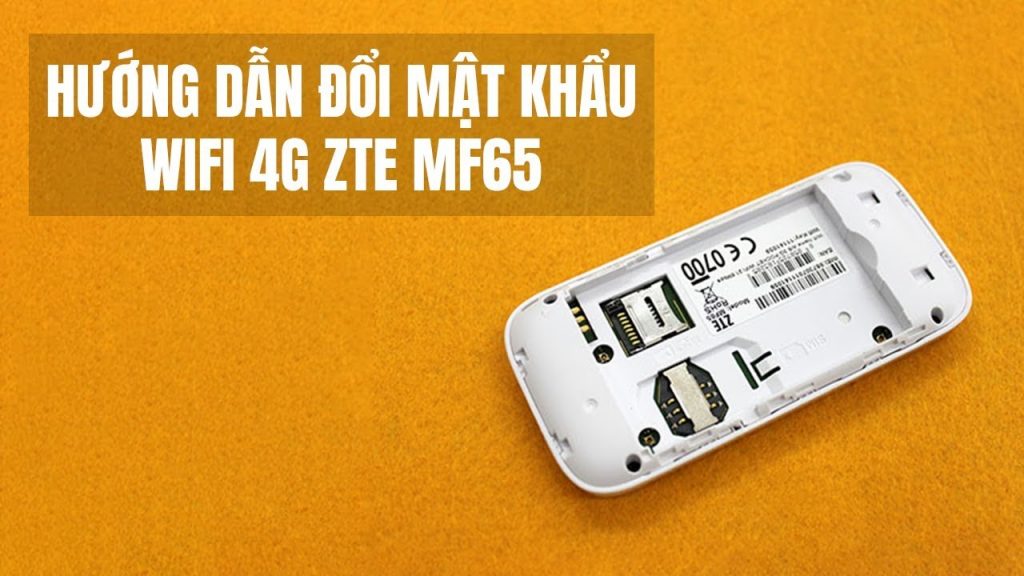
Step 1
Step 1: Slide open the device cover (on the back of the unit) to insert the SIM card, battery, and turn on the device.
The device name and password are on the back of the device under the battery cover. Enter the name and password to connect the device to the MF65 Wi-Fi hotspot.
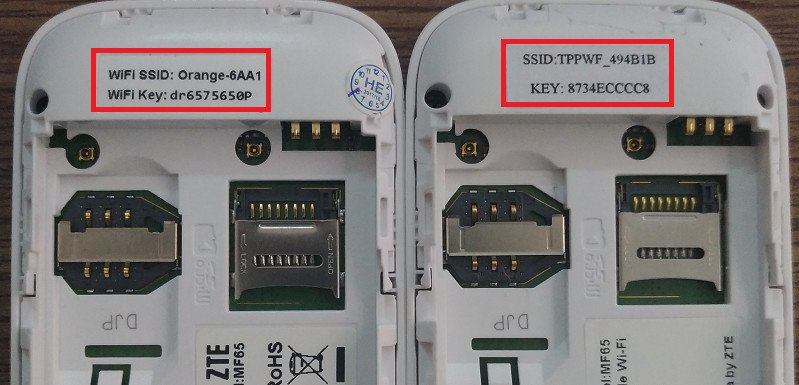
Step 2:
Open web browsers on your smartphone. Enter 192.168.0.1 in the address bar and press enter to access the settings page.
In the Admin Login section, enter your desired password and press OK.
Step 3:
1. After logging in, select Settings.
2. Select Wi-Fi Settings to configure your Wi-Fi.
3. Enter the desired Wi-Fi name in the Network Name field.
4. Enter the Wi-Fi password, at least 8 characters long, in the Pass Phrase field.
5. Press Apply to complete the setup.
Configure APN if the device cannot connect.
Step 1: Slide open the device cover (on the back of the unit) to insert the SIM card, battery, and turn on the device.
The device name and password are on the back of the device under the battery cover. Enter the name and password to connect the device to the MF65 Wi-Fi hotspot.
Step 2:Open web browsers on your smartphone. Enter 192.168.0.1 in the address bar and press enter to access the settings page.
In the Admin Login section, enter your desired password and press OK.
Step 3:
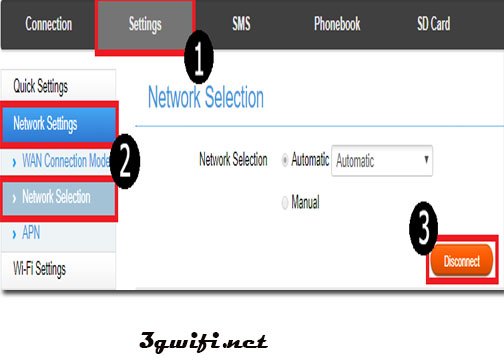
1. Select Settings.
2. In the Network Settings section, select Network Selection.
3. Select Disconnect to temporarily disconnect from the network (If Connect is displayed, skip this step).
Step 5:
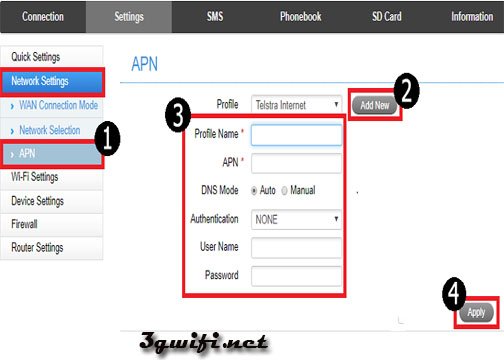
1. Tap on the Profile field and select the APN you just created, corresponding to the Sim Data you are using.
2. Select Set as default to use that APN.
Tap Apply to complete the settings.
We hope the information we have provided above has helped you with how to use the Maxis MF65 wifi hotspot device in detail. We wish you wonderful experiences with our device.