

 English
  Tiếng Việt
 The Huawei E5573 4G mobile wifi hotspot is quite popular nowadays. Today we will guide you onthe most basichow to use the Huawei E5573 wifi hotspot for users. If you are confused or new to using the Huawei E5573 4G wifi hotspot, please refer to the article we provide below

How to use the Huawei E5573 wifi hotspot device
The great benefits of the Huawei E5573 wifi hotspot device
Surely when you choose to buy the product, you have also researched its outstanding features. To understand more about this feature, you can refer to the special features we provide as follows:
The device can broadcast wifi to up to 10 connected devices simultaneously and one connected USB device.
The Huawei wifi hotspot device is easy to control and use via IP address and application. The device is designed in the simplest way, even for people who don't understand technology, it's easy to use.
You can set passwords, hide wifi as you wish to avoid unnecessary disturbances.
Just plug in the SIM and the device can work, no further setup required.
As an international version, it can use all types of 4G SIM cards.
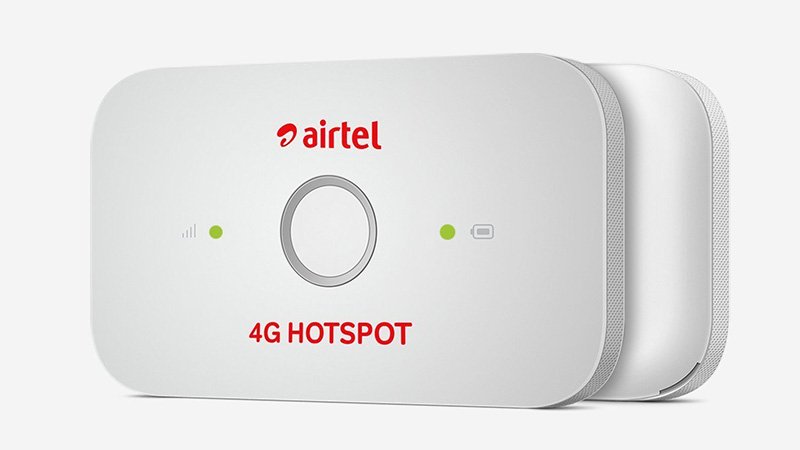
Huawei E5573 with many superior benefits
Video about Huawei E5573 hotspot
The most detailed guide on how to use the Huawei E5573 wifi hotspot.
To use the wifi hotspot most accurately, you need to learn about its features. Here are the steps to use the Huawei E5573 4G wifi hotspot device
Step 1: When you have the device in your hand, open the back cover of the device. Remember the wifi name and password on the cover, then insert the 4G SIM into the device.
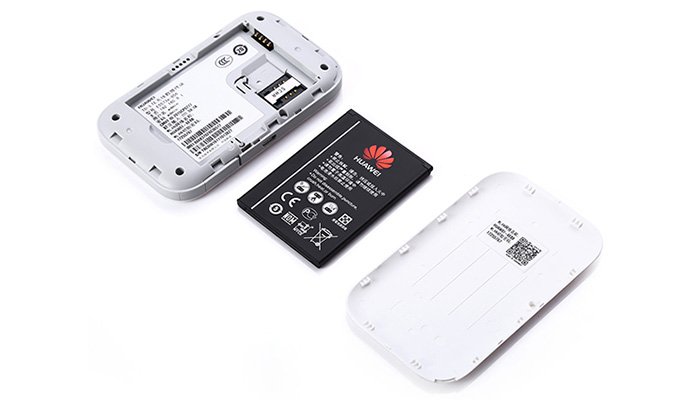
Open the device cover to find the wifi name and password
Step 2: Start the Huawei Wi-Fi hotspot by pressing the power button in the middle of the device screen and holding it for about 5 seconds.
Step 3: Connect to the Huawei 4G Wi-Fi hotspot using the name and password on the device's lid, as done in step 1.
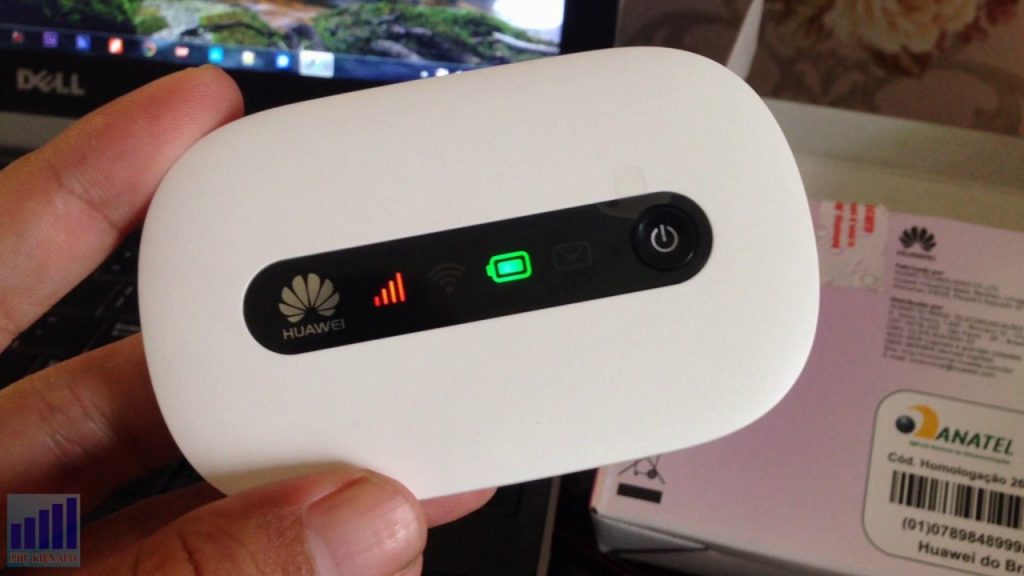
When connected successfully, icons will appear on the screen
Step 4: After successfully connecting to the Huawei E5573 Wi-Fi hotspot. Link the devices you want to connect to the internet with the Wi-Fi hotspot device.
How to set up on Huawei E5573 Wi-Fi hotspot device
To set up the modes of the Wi-Fi hotspot, you need to install the applicationHuawei Hilink from Google Play Store or Appstore.
Here you can completely change the Wi-Fi name and password for the hotspot.
You just need to go to settings, select "My Wi-Fi" from there you can change the name and password as you wish. To complete the change, just tick the V symbol in the top right corner.
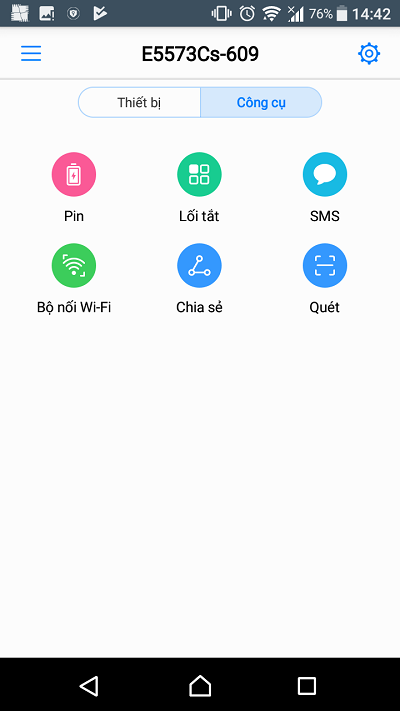
Install the Huawei Hilink app
With the 4 simple steps above, we hope you have basically used and set up a mobile Wi-Fi hotspot using the Huawei E5573 4G Wi-Fi hotspot. Now you can connect to the internet anytime, anywhere.