

 English
  Tiếng Việt
 To talk about the WiFi hotspot that is trusted by many people today, it is the Huawei B593 4G WiFi hotspot. Many people who are new to using it are confused during the process of using and setting up the device. For that reason, today we will provide information onhow to use the Huawei E593 WiFi hotspot right after this. If you are still confused when using it, please read our article.
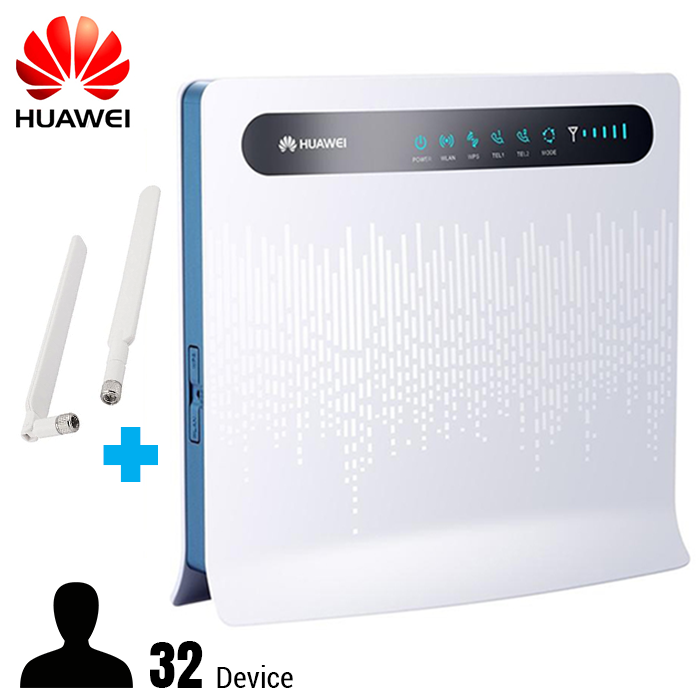
How to use the E593 WiFi hotspot
The function of the Huawei B593 WiFi hotspot
The first thing to do when choosing a hotspot is to understand its functions to see if they suit your needs. We assert that if you choose the B593 WiFi hotspot, it will be a good choice today. With the wonderful functions of the B593 WiFi hotspot.
The Huawei B593WiFi hotspot is a product that integrates the latest technologies today with the special features of the device.
The 4G/LTE FDD network speed is integrated as best as possible at 150Mbps, allowing users to connect to the internet comfortably without worrying about interruptions.
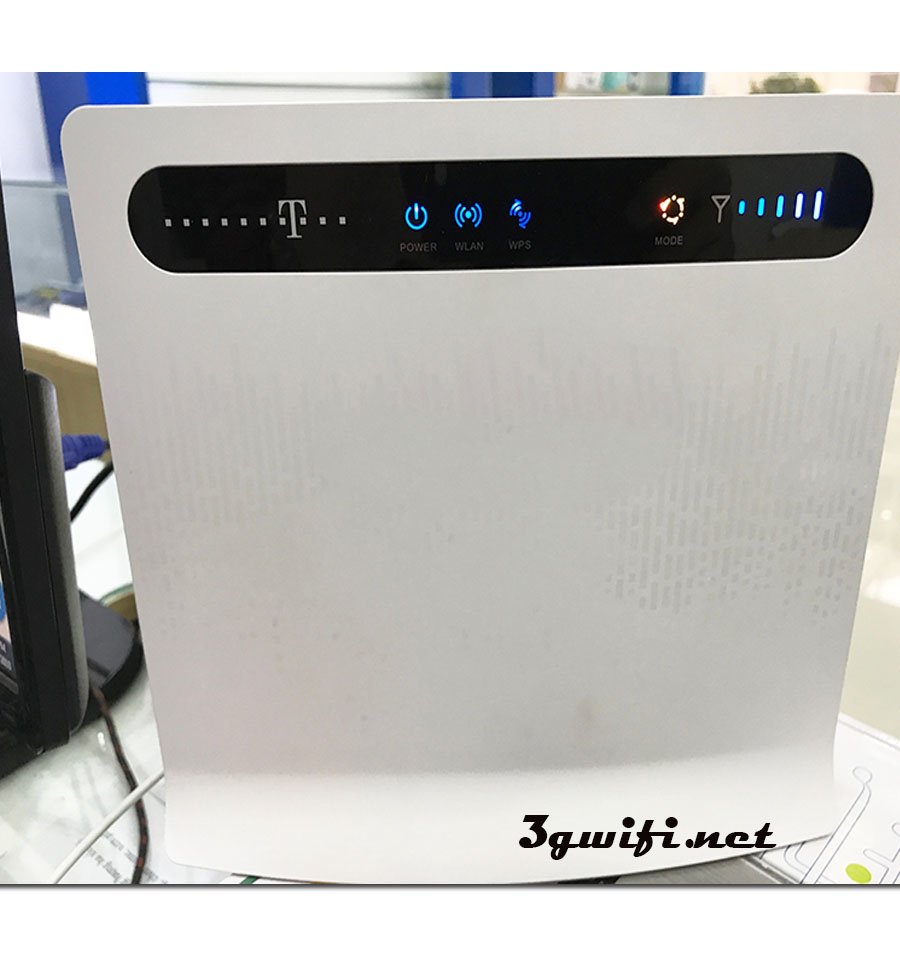
The device operates when the buttons are turned on and show a blue light
The device can connect up to 32 devices simultaneously with stable speed. In addition, the B593 WiFi hotspot provides 4 LAN ports to supply network to computers, cameras, laptops, or TVs...
The device can be used in multi-story buildings or for devices that move continuously.
The device just needs to be plugged in to work. You can take it anywhere with unexpected convenience. Just insert a SIM card and you can use it.
The device is integrated with many display functions such as power light, WiFi light, LAN light, and 3G/4G status indicator light.
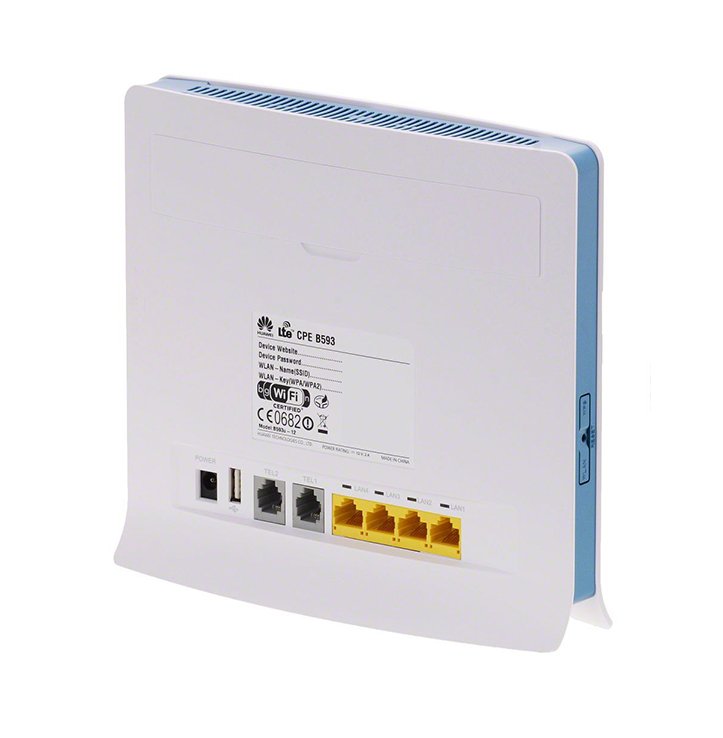
How to use the Huawei E593 WiFi hotspot
To use and set up the device in the best way, you need to follow these steps:
- How to use:
Step 1: The first step you need to do is insert the SIM card into the device's tray. Plug in the power to start the device.
Step 2: Turn on the Huawei B593 wifi router. When the wifi icon lights up blue and the related buttons are illuminated, the device is operational.
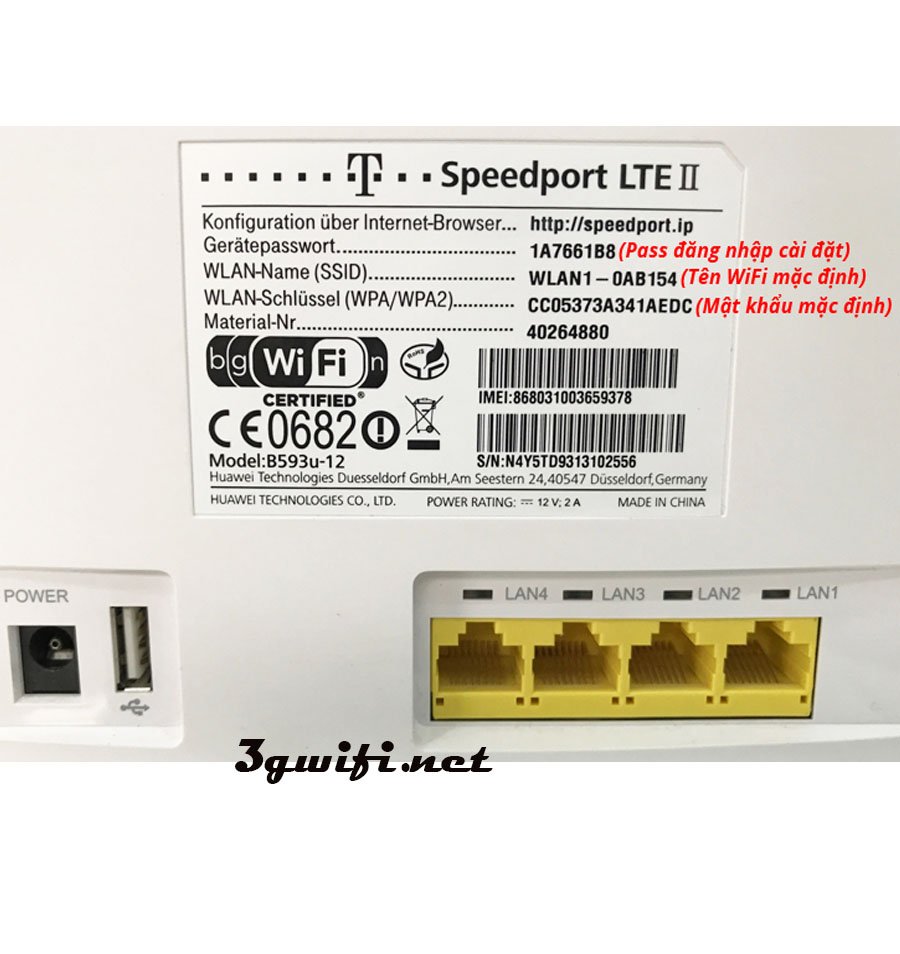
Step 3: Once the device is operational, connect the devices you wish to use to the wifi. The wifi name and password are listed on the back of the router (as shown in the image below). If the wifi connection icon appears successfully, your task is complete.
Device Setup:
Step 1: On the Google search interface of your smartphone after connecting to the B593 wifi router. Go to the address 192.168.1.1 to access the setup interface.
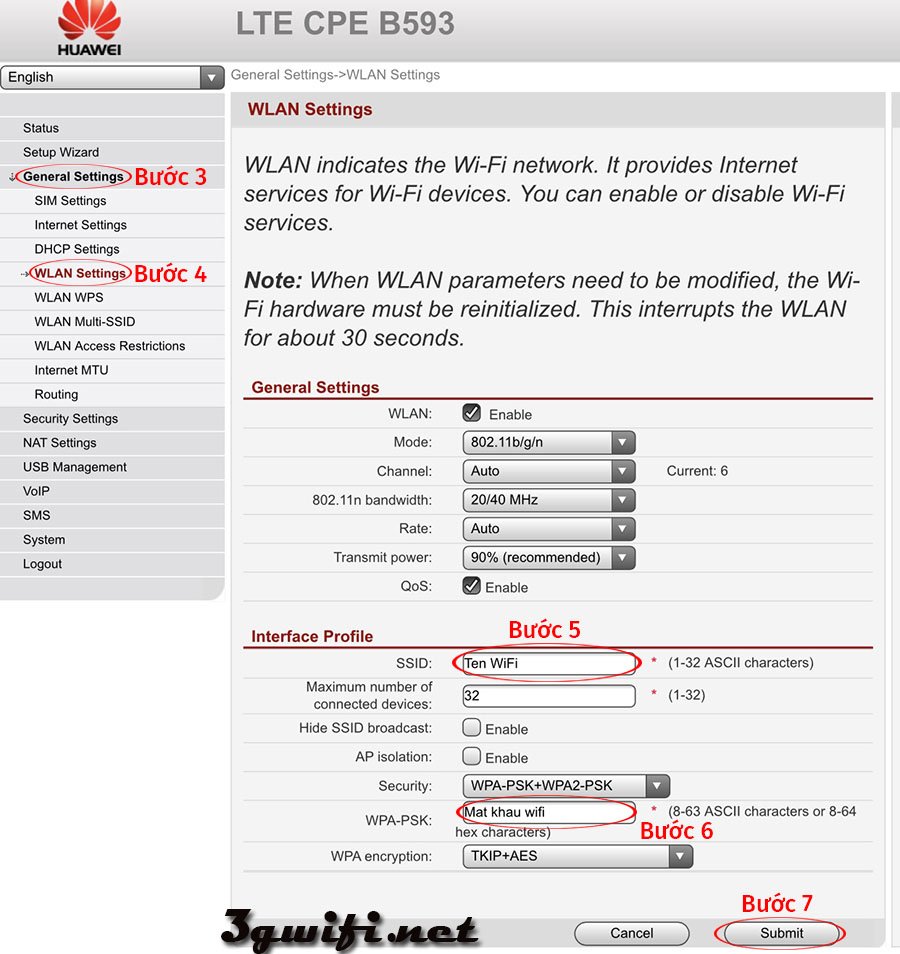
Step 2: On the setup interface, find the Password field and enter the password for the B5893 device you are currently connected to.
Step 3: Go to General Settings ==> Select WLAN Settings
. Re-enter the name and Password for the B593 wifi router. After entering, click Submit.
Step 4: Next, enter the name and password you want to change to and select Submit to finish.
Step 5: Wait for the success message. Exit the browser. Enter the new name and password you just changed and use normally
Note: Changing the name and password helps you be proactive in the Wifi sharing process. Remembering the password is also much easier!
The information we just provided has given you an overview of how to use the Huawei B593 wifi hotspot. We wish you wonderful experiences with the best wifi hotspot available today.