

 English
  Tiếng Việt
 Nowadays, the role of Wi-Fi in connecting to the internet is undeniable. Most people use Wi-Fi to access the network. Using Wi-Fi with security settings makes it difficult for outsiders to access. But due to being too accommodating, many people face the situation where their Wi-Fi network has too many users, causing the network to be congested. So, is there a way to check? We will answer all of these in the article about how to check who is using wifi.

How to check who is using wifi
Check who is using wifi via the lights on the router
Wi-Fi routers usually have indicator lights to signal whenever a wireless device is using the network. Therefore, one way to check if your Wi-Fi is being "illegally used" by others is to turn off all your wireless devices and see if the indicator light on the router continues to blink.
However, this method can be inconvenient if you have many devices connected to Wi-Fi, and checking this way doesn't provide too much information for you. Therefore, you may need the solutions below.
Check the device list when you want to check who is using wifi
All Wi-Fi routers have tools that allow users to view a list of devices connected to Wi-Fi. What you need to do is access the router's web interface to find that list. First, you enter the router's IP address into the browser's address bar.
On Windows, you can find the router's IP address by going to the command prompt (press Win+R then type "cmd"), then type ipconfig in the window that appears. Look for the line "Default Gateway", and this is the router's IP address. On Mac, go to Network Preference, and the Wi-Fi router's IP address is the address next to "Router".
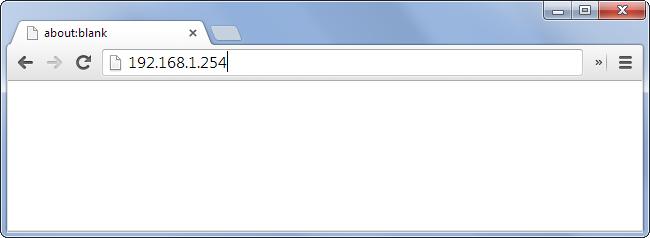
Access the IP address to see the number of visitors
After entering, you will be prompted to log in to the router account. This account usually comes with the instructions when you buy the router, and the username and password are often "admin". Note that if you haven't changed the password for this account, you should change it immediately if you don't want hackers to exploit it.
Once logged into the web interface, look for sections related to the list of connected devices. We can only speak generally here because the location of this list depends on the router manufacturer. For example, Netgear routers will have an "Attached Devices" section, while some other routers are named "Device List".

Here you will be provided with a list of IP addresses, Mac addresses, and device names (if the router recognizes them) connected to the Wi-Fi network. Compare this list with your devices to know if your Wi-Fi is being used by strangers.
We hope the information we've provided will help you fully manage your Wi-Fi network so you can be proactive in everything. We wish you a great experience using Wi-Fi in your own home.