

 English
  Tiếng Việt
 - 1. 1. Use the Data Saver feature in Chrome
- 2. 2. Use the video compression feature in Opera
- 3. 3. Delete the Facebook app
- 4. 4. Use offline apps and games
- 5. 5. Limit background data
- 6. 6. Turn off automatic update mode
- 7. 7. Prepare music for your phone
- 8. 8. Tìm ra và hạn chế/ gỡ bỏ các ứng dụng ngốn dữ liệu
3G with Smartphones is like shadow to shape, but 3G fees are not cheap at all 200đ/1mb. Therefore, you should also learn how to save mobile data so that you can surf the web and save some of your phone bill each month.
>>> See more products 3G SIM dedicated to smartphones is 30% off
1. Use the Data Saver feature in Chrome
If Chrome is your primary browser, this feature can help save about 30% to 35% of mobile data when browsing the web. Specifically, when activated, Data Saver will compress web pages before your phone downloads them. However, readers should also note that Data Saver will make the web browsing experience a little slower.
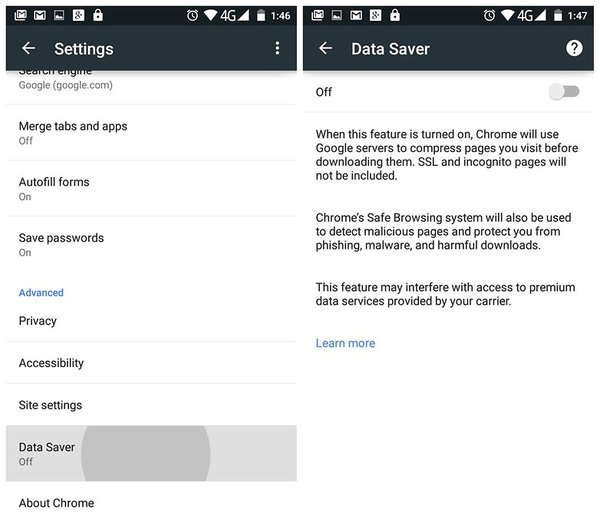
To enable Data Saver, you can go to Chrome, tap the three dots in the upper left corner of the screen, select Settings and Data Saver.
2. Use the video compression feature in Opera
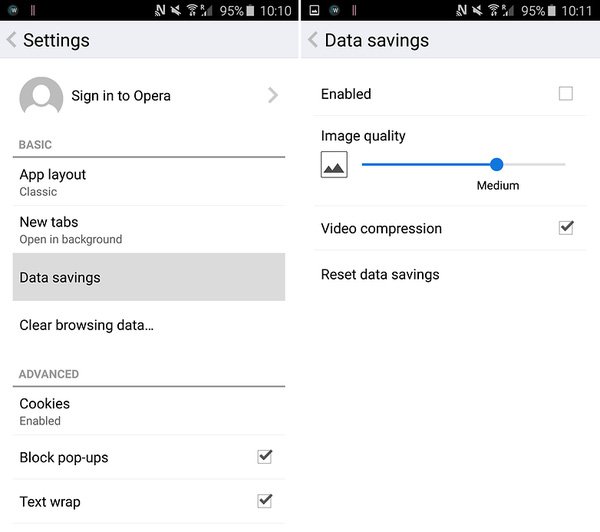
Opera for Android browser has a very useful feature that helps compress video data when you. To use, go to Opera, select Settings > Data savings and tick the Video Compression box. According to AndroidPit, Video Compression not only saves mobile data but can also make videos load faster.
3. Delete the Facebook app
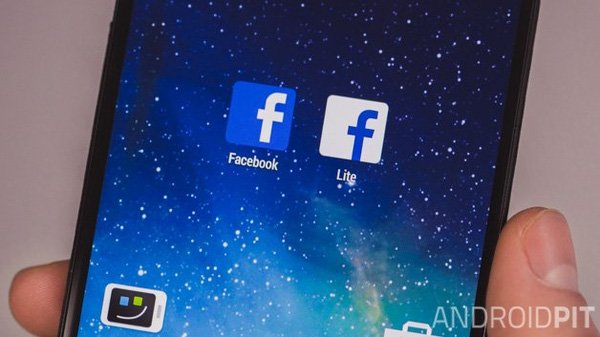
Android users probably... understand that the Facebook app consumes a lot of network data and battery. Therefore, if it's not necessary, you can uninstall this app and switch to using the Facebook version for mobile web browsers, for example.
4. Use offline apps and games
Some games and apps constantly use network data for various purposes such as security, safety, or to refresh data. At the same time, quite a few apps do not use network data at all after the first download. You should try to explore and find these apps.
5. Limit background data
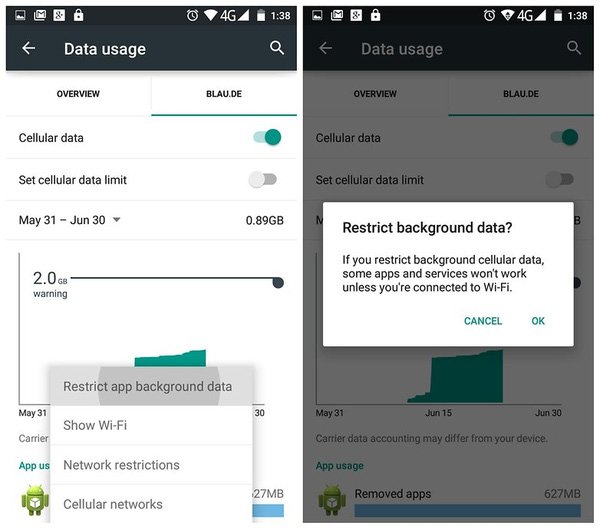
Background data is the Internet traffic that apps use even when you are not using them, for example, data used to sync emails, update news feeds, or weather widgets are some examples.
In Android, you can Settings > Data Usage > Restrict Background Data hoặc để hạn chế dữ liệu nền của một ứng dụng riêng lẻ tại Settings > Apps. You can also change the data synchronization options for Google services in ettings > Accounts > Google, select the account and untick the services you do not want to synchronize data automatically.
6. Turn off automatic update mode
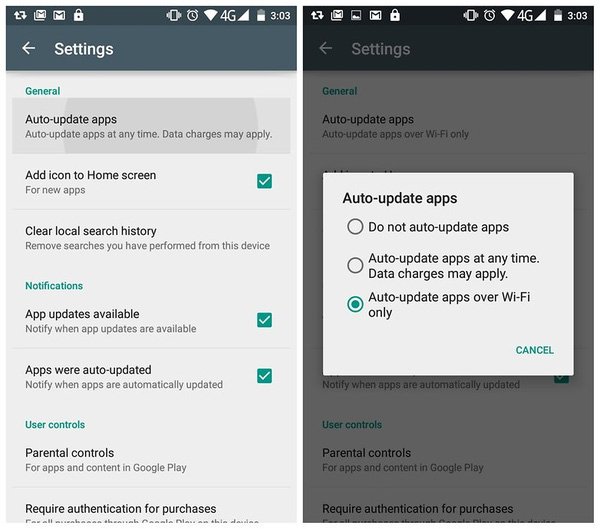
Here, you should also check if your Android smartphone defaults to enabling automatic app updates by going to Settings, finding the Auto-update apps option and ensuring one of the following options is enabled: "Auto-update apps over Wi-Fi only" or "Do not auto-update apps".
7. Prepare music for your phone
Music/video streaming websites are the leading
8. Tìm ra và hạn chế/ gỡ bỏ các ứng dụng ngốn dữ liệu
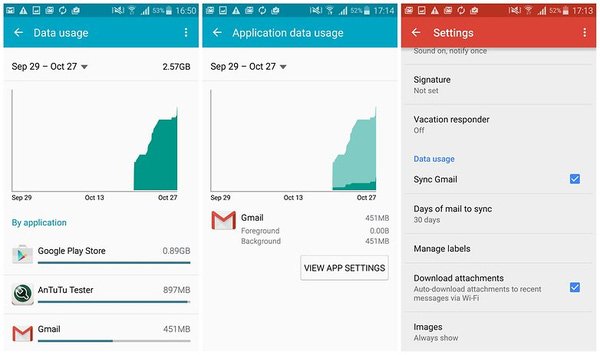
Ở Settings > Data usage, người dùng có thể xác định rõ ứng dụng nào là đối tượng ngốn dữ liệu di động nhất. Qua đó, bạn sẽ tìm ra ứng dụng nào mình nên hạn chế sử dụng hoặc gỡ bỏ luôn nếu không cần thiết.
This article was edited and updated on 01/14/2020