

 English
  Tiếng Việt
 - 1. Ways to save 3G on iPhone
- 1.1. Automatically check app data updates over cellular networks
- 1.2. Turn off cellular data usage for iCloud Drive
- 1.3. Wi-Fi Assist mode
- 1.4. Control background app activity
- 1.5. Close unnecessary Safari tabs
- 1.6. Limit high-quality music streaming
- 1.7. Turn off data when not in use
- 1.8. Turn off auto-play videos on Facebook
- 1.9. Adjust GPS access permissions
- 1.10. Video tutorial on saving 3G for iPhone devices
- 1.11. Limit applications using 3G data
10 quick tips that will help you save 3G on your iPhone very effectively. You will no longer have to worry about wasted 3G data.
Ways to save 3G on iPhone
Automatically check app data updates over cellular networks
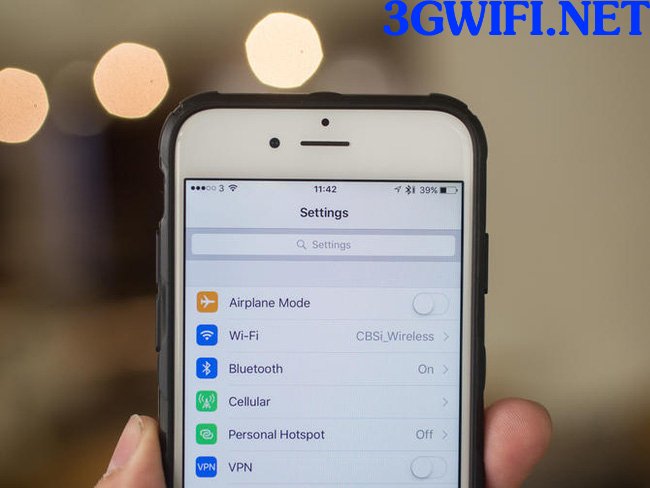
One of the factors that consumes your 3G data is the device automatically updating data from the App Store software, so you should turn off that feature immediately by adjusting settings. Go to Settings > iTunes & App Stores and then turn off the Use Cellular Data option.
Turn off cellular data usage for iCloud Drive
>>>Check out powerful 4G mobile hotspots at: mobile wifi
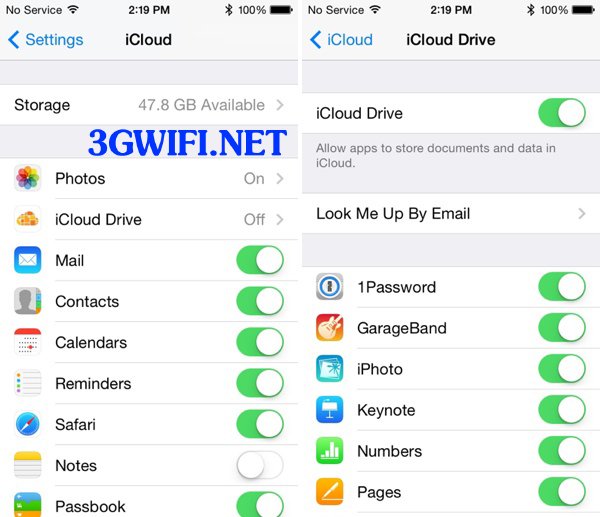
iCloud Drive is a tool that helps users store and sync data from Apple devices or even Windows. But it also requires Internet access. To prevent this function from using cellular data, go to Settings > iCloud > iCloud Drive, scroll down, and turn off the Use Cellular Data option.
Wi-Fi Assist mode
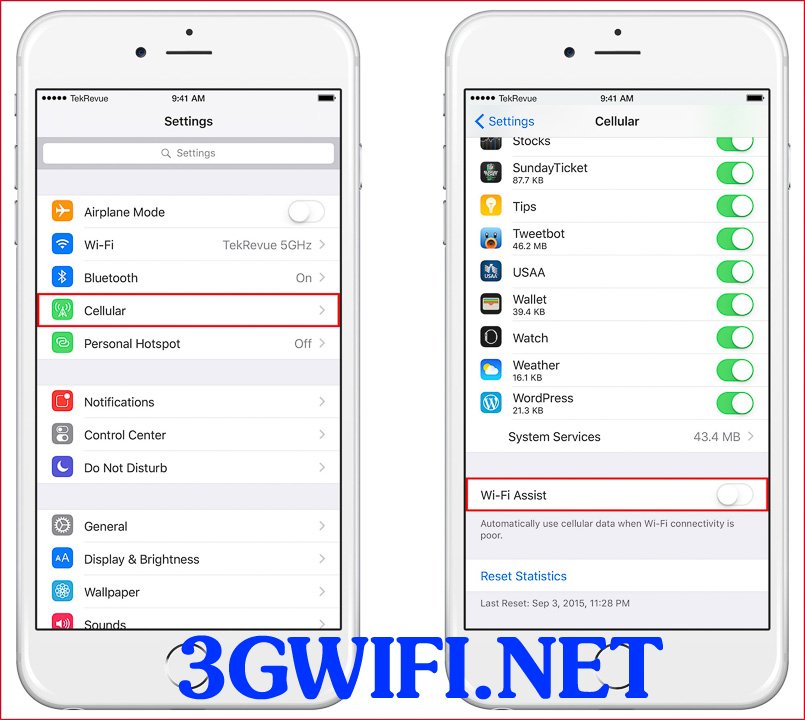
Wifi Assist is a perfect feature to help users browse the web better by connecting to cellular data to replace weak Wi-Fi signals. At the same time, it is also considered one of the factors that consume cellular data at high speed, increasing your monthly 3G bill. Therefore, if you don't feel it's necessary, you should go to Settings > Cellular, scroll down to turn off the Wi-Fi Assist option.
Control background app activity
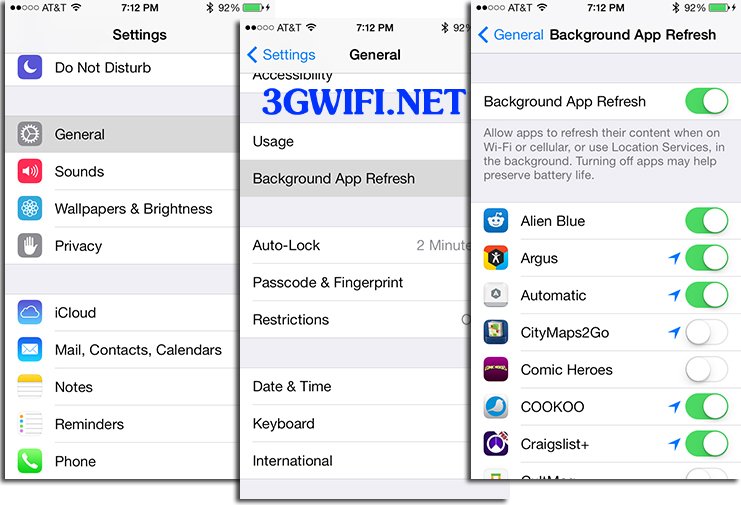
This is a widely used tip to save cellular data because many apps on iOS devices can run in the background, continuously updating data over cellular. Therefore, if you don't need it, go to Settings > General > Background App Refresh to turn it off or select individual apps you want to disable.

Close unnecessary Safari tabs
>>>Use Wi-Fi freely without needing 3G with:4g sim wifi hotspot
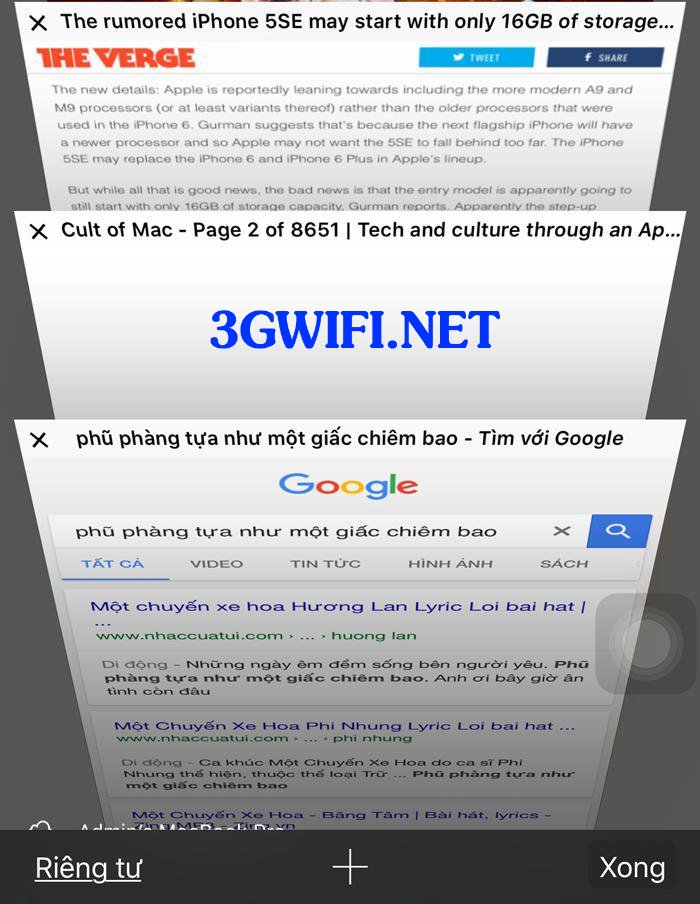
Many iPhone users have a habit of opening many tabs in the Safari browser and forgetting to close them. This will consume a lot of 3G data when you return to the browser. Therefore, after browsing the web, you should close those tabs to limit wasted data.
Limit high-quality music streaming
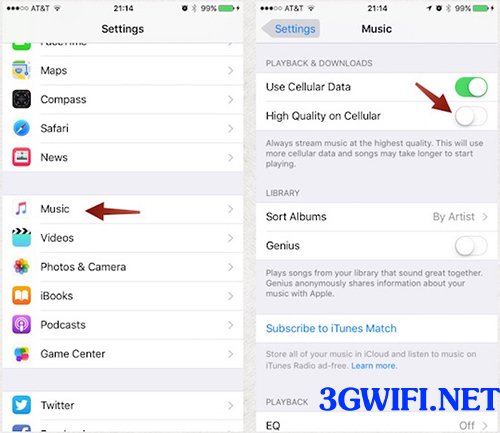
Apple allows users to stream high-quality music over Wi-Fi or cellular networks. The higher the quality of the music, the larger the download size and the more 3G data it consumes. Therefore, if you don't feel it's necessary, you should turn off the High Quality on Cellular feature and even Use Cellular Data in the Settings > Music section.
Turn off data when not in use
Some common habits for iPhone users are that they often forget to turn off the network connection after they are done using it. This will consume data without knowing where it went, as applications like Facebook, Zalo, Line, etc., often run in the background, or for location services. Therefore, you need to turn off the network connection immediately when not in use to ensure the best possible data savings.
Turn off auto-play videos on Facebook
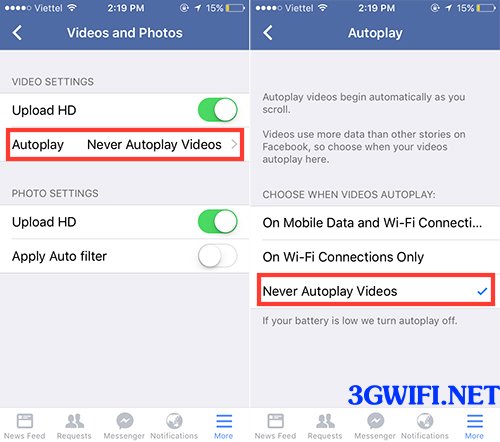
To turn off the auto-play video mode when browsing Facebook, go to the Facebook app > More > Settings > Account Settings > Videos or Photos > Autoplay > Select Never Autoplay Videos.
Adjust GPS access permissions
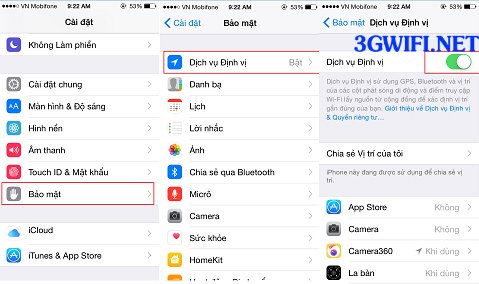
There may be many applications that access user location, and according to the phone's principle, using 3G connection helps you determine your location better. Besides essential GPS applications like Google Maps or Apple Maps, there are some applications where location tracking is not important.
To set up and adjust which applications are allowed to access location, go to Settings > Privacy > Location Services.
Video tutorial on saving 3G for iPhone devices
Limit applications using 3G data
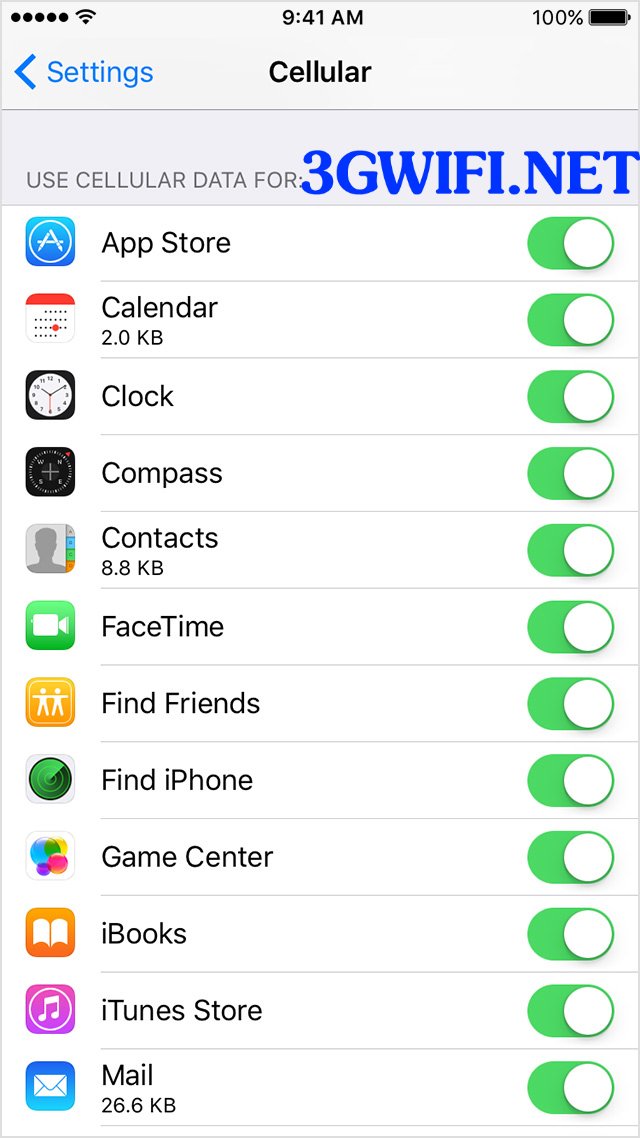
When you go to Settings > Cellular, you will see a list of applications allowed to use 3G networks below. You can turn off all of them if you don't use them for each specific application.

This article was edited and updated on 05/18/2018.