

 English
  Tiếng Việt
 Many of you have questions about how to change the name and password of the Huawei E5577 wifi hotspot to make it easier to remember, because the manufacturer's default password is too long and difficult to remember. Therefore, today Sahaha will guide you in detail on how to change the name and password of the Huawei E5577 wifi hotspot as follows
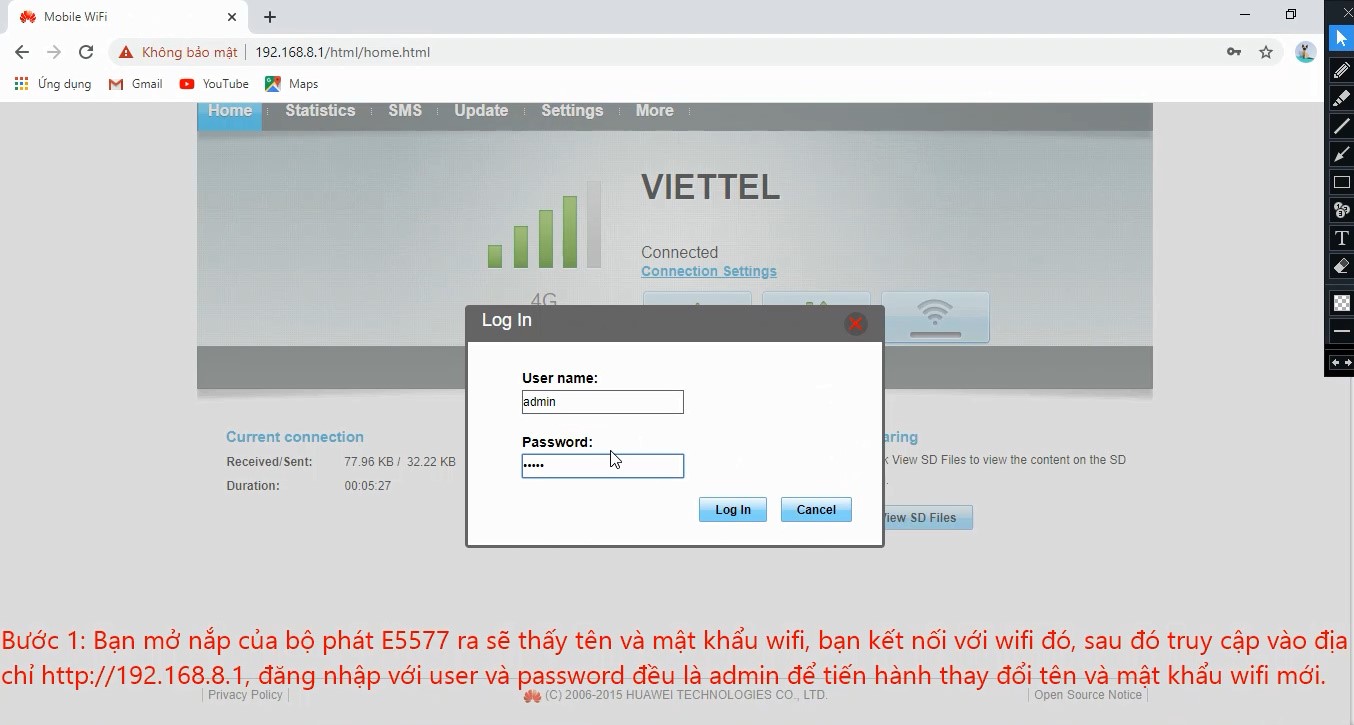
Step 1:
Insert the SIM card into the hotspot, turn it on, then connect to the wifi name and password on the back of the device, access the address http://192.168.8.1 to change the new wifi name.
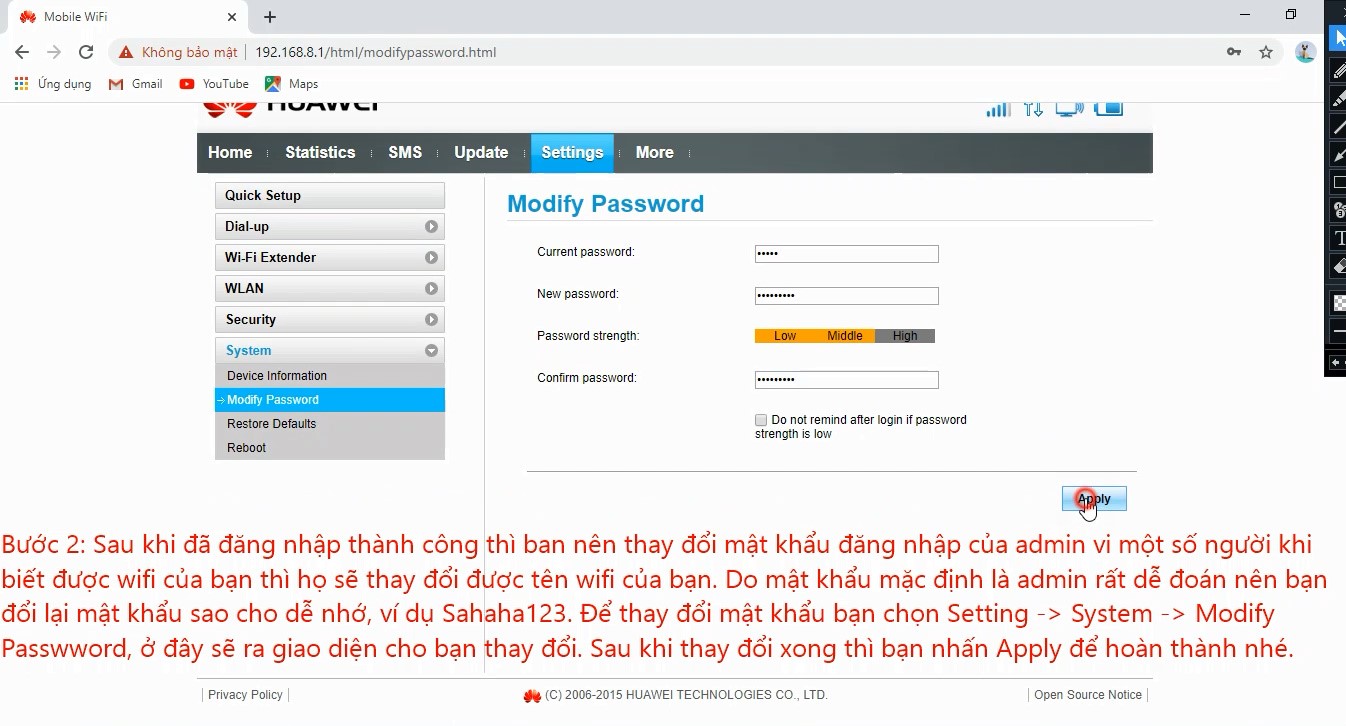
Step 2:
Change the admin password, select System -> ModifyPassword -> an interface will appear for you to change the new admin password, for example Sahaha123@.
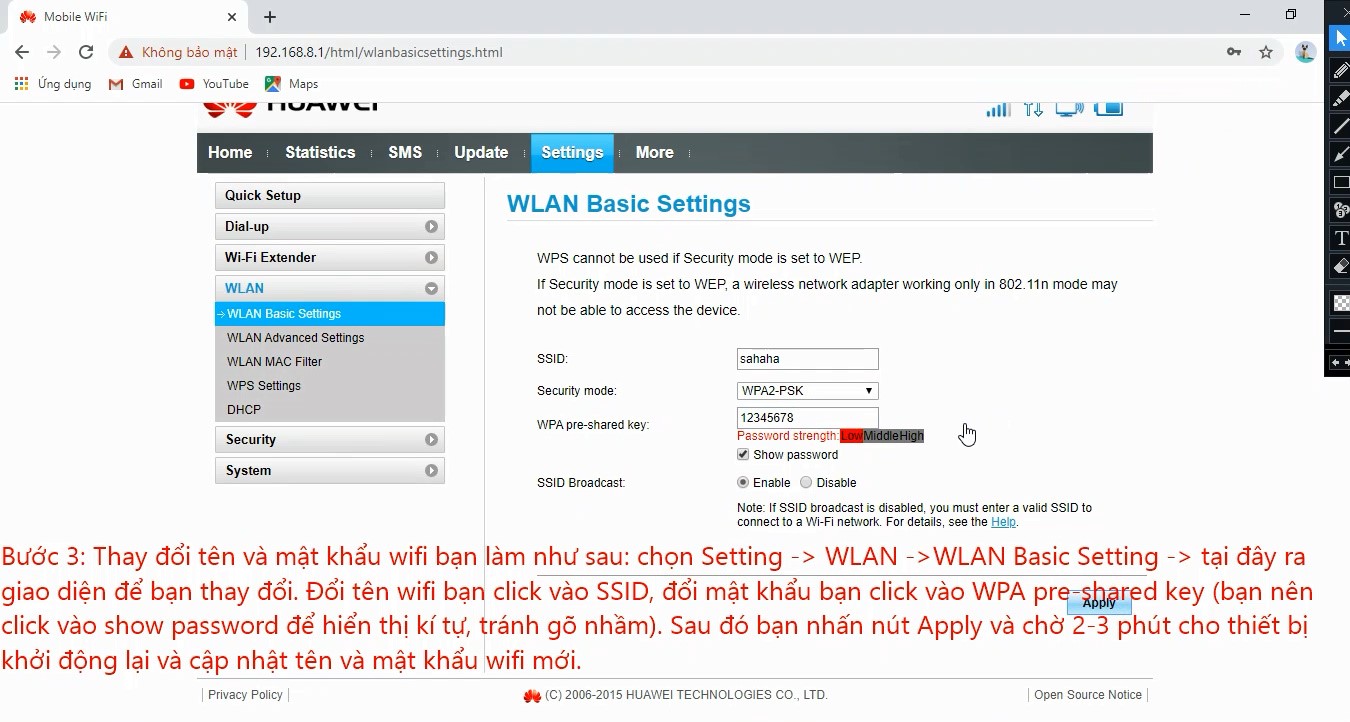
Step 3:
To proceed with changing the wifi name and password, do the following: Select Setting -> WLAN -> WLAN Basic Setting, an interface will appear here for you to change the name and password.
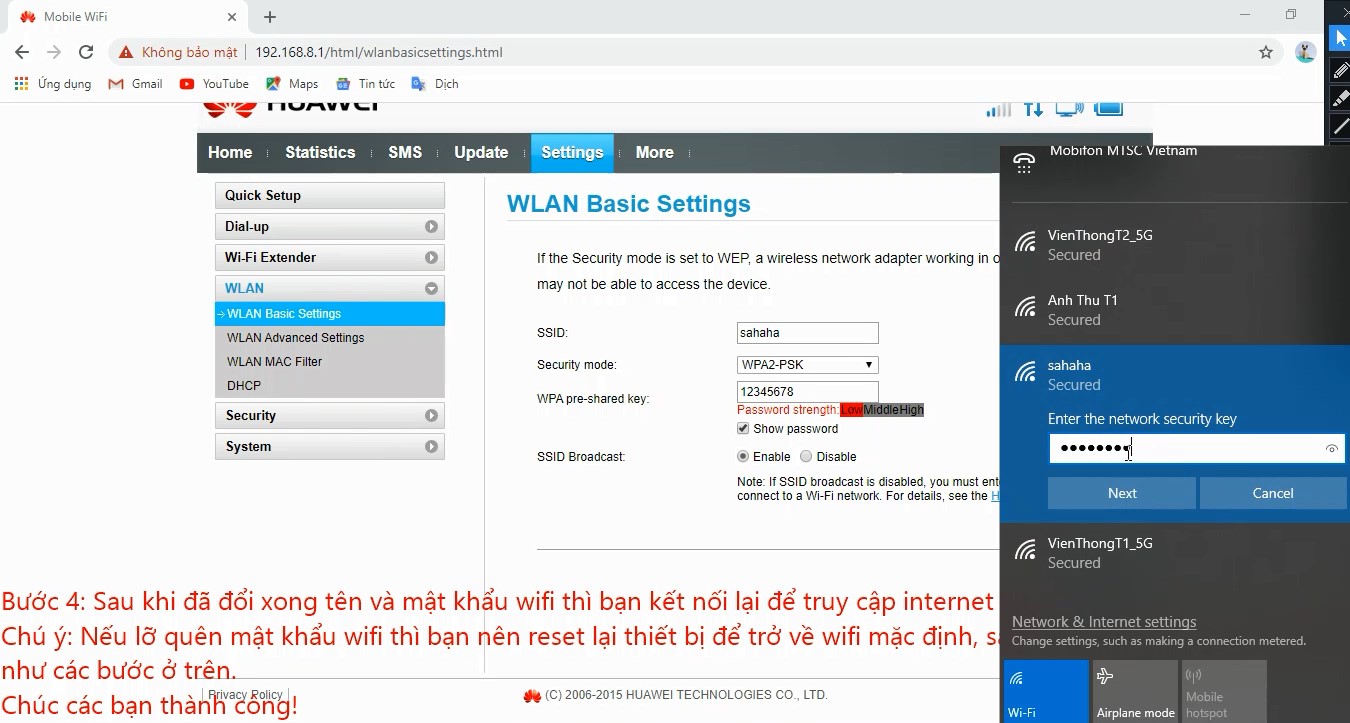
Step 4:
After changing the wifi name and password, connect to the new wifi to access the internet...
Video guide to setting up and changing the Huawei E5577 password from A -> Z
Good luck!