

 English
  Tiếng Việt
 Buy Vinaphone MF667 3G USB get free 3G Sim card with free calls, trong 2 ngày trước 30/4 – 1/5
To answer the question on how to install Vinaphone 3G USB and also to best support our customers, Viettel multi-network 3G modem specialized for tablets has made this article with a video to guide you through activating the Vinaphone 3G USB from A-Z.
Hướng dẫn cài đặt USB 3G Vinaphone từ A – Z
Bước 1:
Insert the 3G Sim into the 3G DCOM, pay attention to insert it correctly according to the image to avoid the 3G DCOM not receiving signal.
Bước 2:
Plug the 3G USB into the computer (if your computer has antivirus installed, you should temporarily disable it before installation)
Bước 3:
The computer has recognized the 3G USB, you start the installation process as shown:
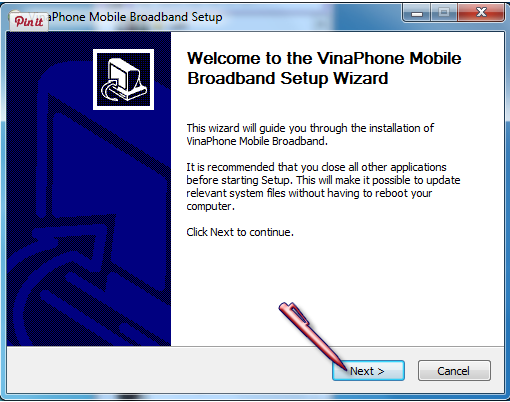
Cách cài đặt USB 3G Vinaphone từ A – Z-1
You click onIf the program does not install automatically, follow the path: "My Computer" → " → "Double-click to run the program
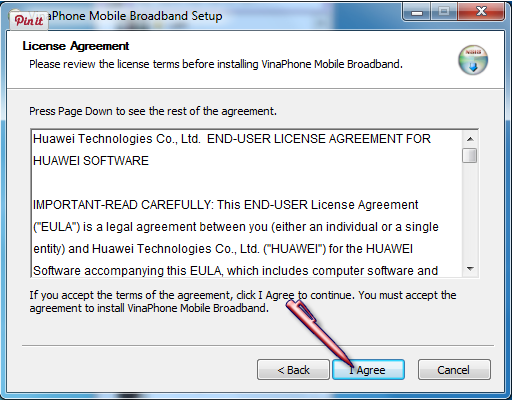
Cách kích hoạt USB 3G Vinaphone từ A – Z-2
Next, you clickI Agree
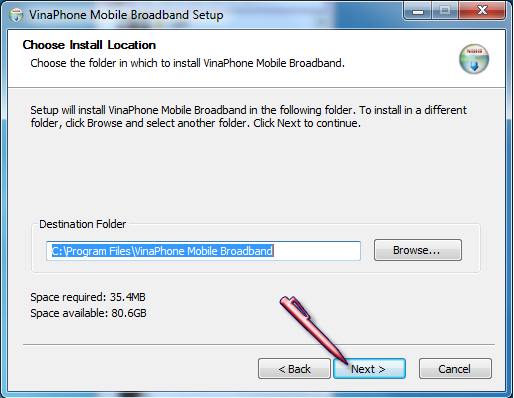
Cách cài đặt USB 3G Vinaphone từ A – Z-3
ClickIf the program does not install automatically, follow the path: "My Computer" → " → "Double-click to run the program
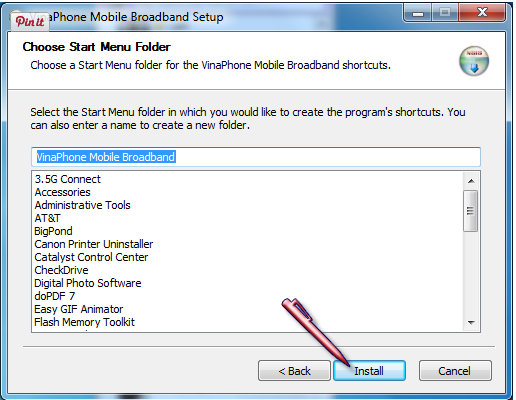
Cách cài đặt USB 3G Vinaphone từ A – Z-4
Next, you chooseInstall
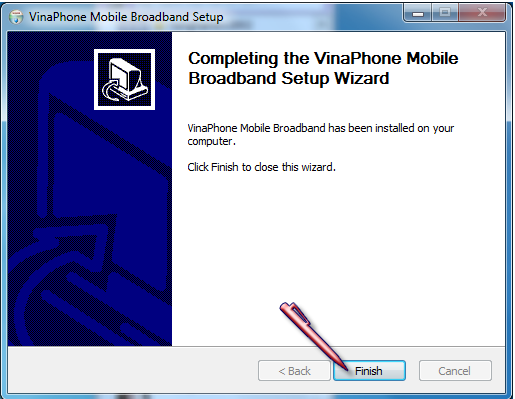
Cách kích hoạt USB 3G Vinaphone từ A – Z-5
Select Finish
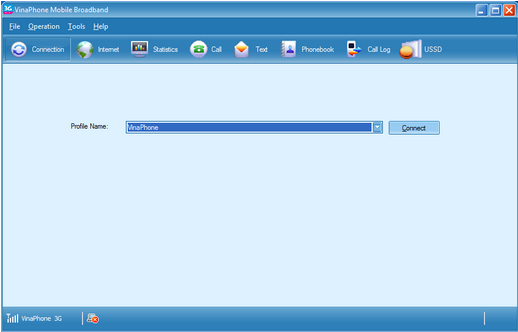
Cách cài đặt USB 3G Vinaphone từ A – Z-6
The default 3G management software is initially in English
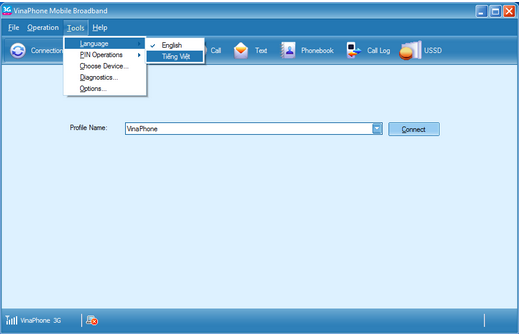
Cách cài đặt USB 3G Vinaphone từ A – Z-7
To select the Vietnamese interface, click on Tools/Language/Vietnamese
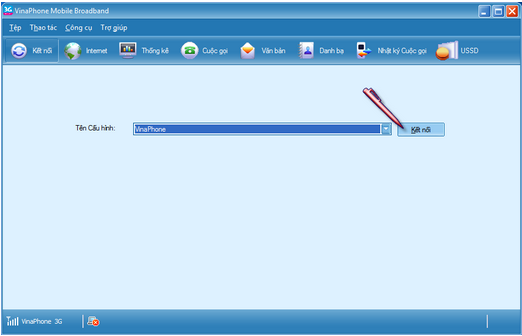
Cách cài đặt USB 3G Vinaphone từ A – Z-8
Now you have the Vietnamese interface, the next step to Connect 3G is just click on Connect
Article updated on 27/12/2019